Quick Answer: How to Find My Phone Number?
If you’ve forgotten your phone number, you can usually find it within a minute.
- On iPhone: Go to Settings > Phone > My Number or open the Contacts app and tap My Card.
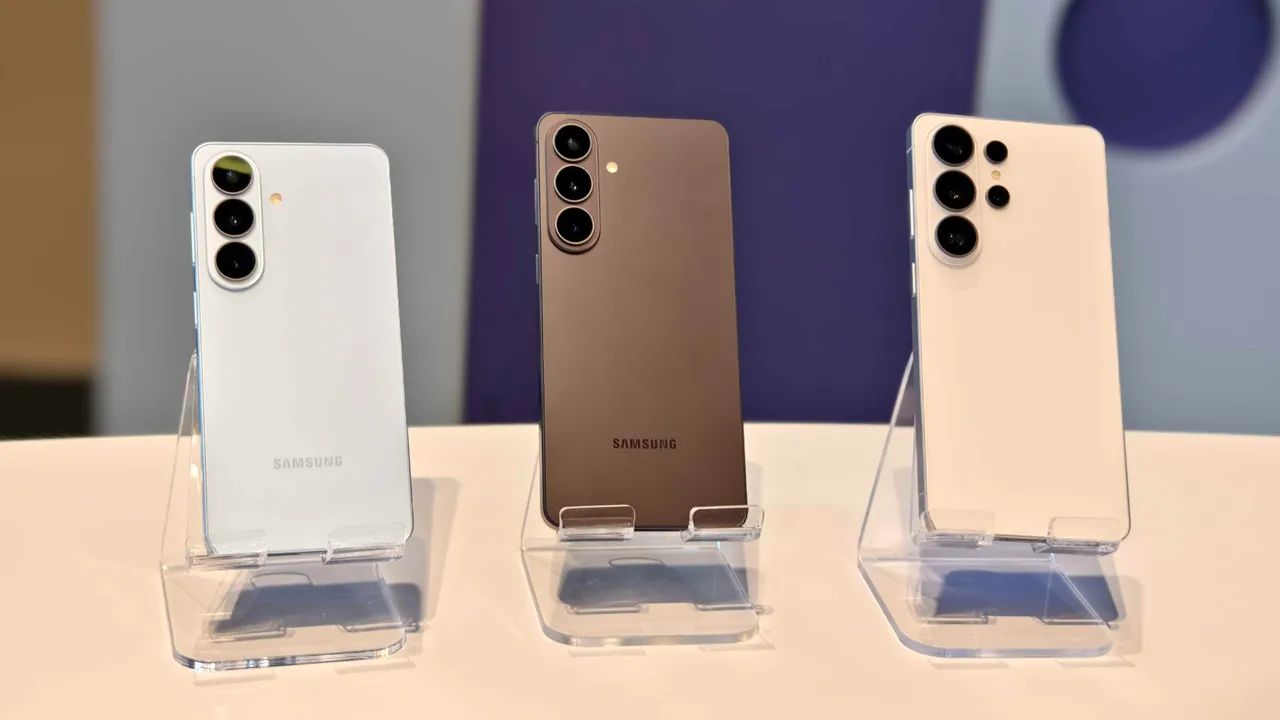
- On Samsung & Android: Open Settings > About Phone > Phone Number or Settings > SIM Card Manager, depending on your device.
- If your number doesn’t appear, dial a friend, check your SIM packaging, log in to your mobile network account, or contact your carrier.
Whether you’re using a refurbished iPhone, refurbished Samsung phone, or another Android device from iExpert Market, the process is exactly the same as it is on a brand-new device.
Introduction
Your mobile phone number is one of the most important pieces of information connected to your smartphone. Whether you’re creating a new online account, setting up banking apps, activating WhatsApp, registering for two-factor authentication, or simply sharing your contact details with someone, knowing your phone number is essential. However, many people forget their number after switching to a new SIM card, upgrading to a different network, or purchasing a new device.
This is particularly common among users who buy a refurbished smartphone. After transferring data, signing in to their Apple ID or Google account, and installing their favourite apps, remembering the actual phone number often becomes an afterthought. Fortunately, both iPhone and Android devices include several simple ways to find your number in just a few taps.
In this comprehensive guide, you’ll learn how to find your phone number on an iPhone, Samsung Galaxy phone, Google Pixel, and other Android devices. We’ll also explain what to do if your number doesn’t appear, how to check your number on dual SIM and eSIM devices, and how your mobile network can help if your phone isn’t displaying the correct information.
Whether you’ve recently upgraded to a refurbished iPhone or a refurbished Samsung phone from iExpert Market, this guide will help you locate your phone number quickly and get your device fully set up.
Why You Might Need to Find Your Phone Number?
Although most people use their phone number every day, it’s surprisingly easy to forget it—especially if you’ve recently changed your device or mobile provider. Unlike an email address, which you type regularly, your phone number is often stored automatically in apps and services, meaning you rarely need to remember it until someone asks for it.
There are many situations where knowing your phone number becomes important. If you’ve just inserted a new SIM card or activated an eSIM, you’ll likely need to confirm your number during the setup process. Similarly, if you’ve upgraded to a refurbished smartphone, checking your number should be one of the first steps before transferring data or logging into your favourite apps.
You may also need your phone number when:
- Creating or verifying an online account
- Activating WhatsApp, Telegram, or Signal
- Registering for online banking
- Enabling two-factor authentication (2FA)
- Sharing your contact details with friends, family, or colleagues
- Setting up Apple ID or Google Account recovery
- Pairing your phone with a smartwatch
- Connecting your device to your car using Android Auto or Apple CarPlay
- Contacting your mobile network provider
If you’ve recently moved to a new device, it’s also a good idea to ensure that your number has transferred correctly before restoring your apps and data. For Apple users, our guide on How to Transfer Data to a New iPhone explains the safest way to move everything across without losing important information.
Where Is Your Phone Number Stored?
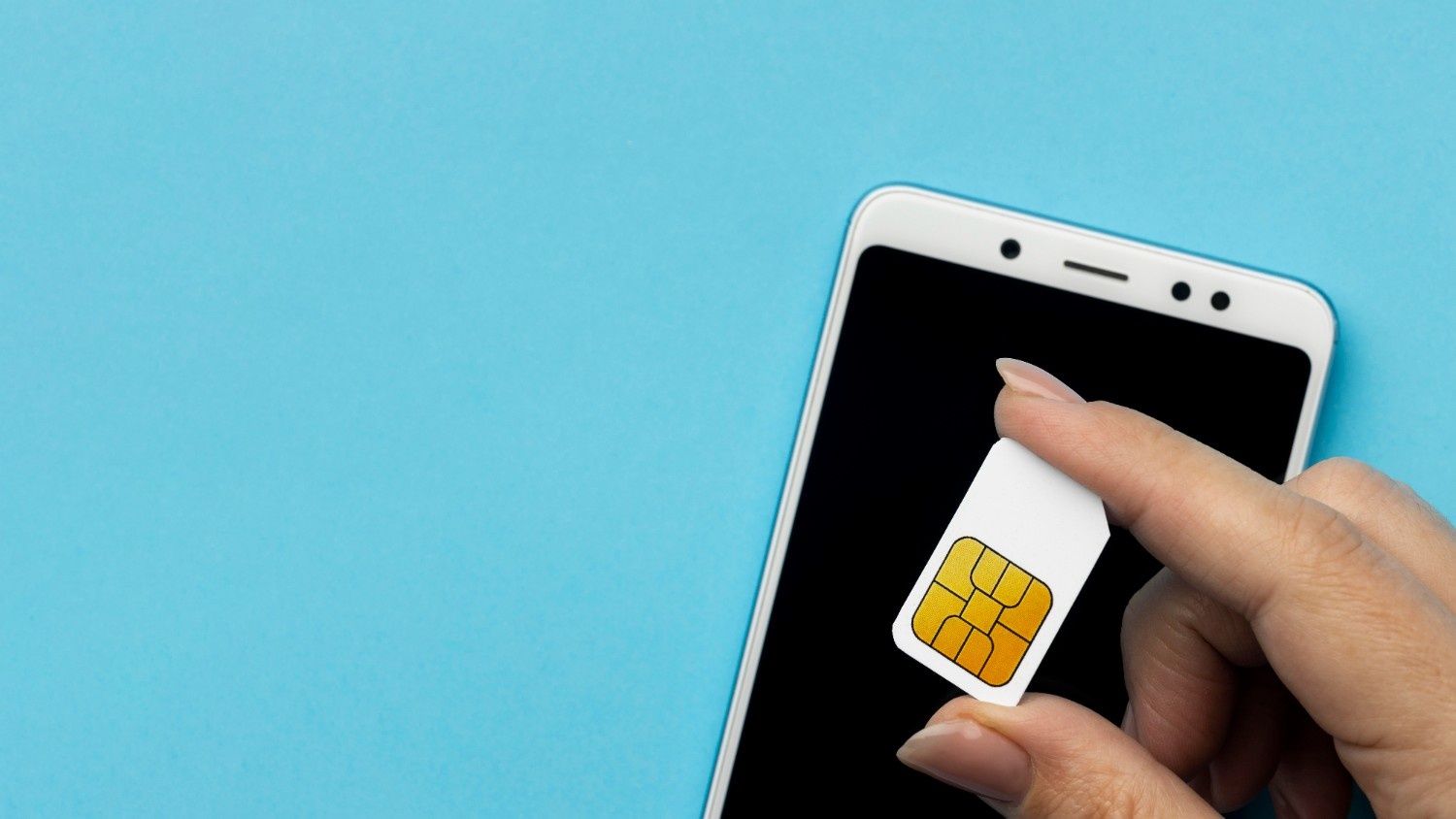
Many people assume that their phone number exists only on the SIM card. While the SIM stores your mobile subscription information, modern smartphones keep your number in several different locations. This is why there are multiple ways to find it, even if one method doesn’t work.
Depending on your device and mobile network, your number may be stored in:
| Storage Location | What It Does |
|---|---|
| SIM Card | Stores the number assigned by your mobile network. |
| Phone Settings | Displays the active number linked to your SIM or eSIM. |
| Contacts App | Saves your personal contact card, often including your own number. |
| Apple ID | Associates your number with iMessage, FaceTime, and account recovery. |
| Google Account | Stores your number for Android services and security features. |
| Mobile Network | Keeps the official record of your registered number. |
Because your number is stored in several places, don’t worry if it isn’t visible in one location. In most cases, you’ll still be able to find it using another method covered later in this guide.
How to Find Your Phone Number on an iPhone
Apple has made it easy to view your mobile number, and there are several different ways to check it. The exact steps may vary slightly depending on your version of iOS, but the process is almost identical across all modern iPhones.
These methods work for:
- iPhone SE
- iPhone 11
- iPhone 12
- iPhone 13
- iPhone 14
- iPhone 15
- iPhone 16
- iPhone 17
- Certified refurbished iPhones from iExpert Market
If you’ve recently upgraded to a refurbished iPhone, checking your phone number should be part of your initial setup alongside signing in to your Apple ID, restoring your backup, and confirming your mobile network connection.
Method 1: Find Your Phone Number in Settings
The quickest and easiest way to check your number is through the Settings app. This method works for most iPhones using either a physical SIM card or an eSIM.
Steps:
- Open Settings.
- Scroll down and tap Phone.
- Look for My Number at the top of the screen.
If your SIM has been activated correctly, your phone number will appear immediately. This is the method most Apple users rely on because it requires only a few taps and doesn’t involve opening any additional apps.
If you don’t see your number here, don’t panic. It may simply mean that your carrier hasn’t written the number to the SIM card yet. In that case, try one of the other methods below.
Method 2: Check Your Number Using the Contacts App
Every iPhone creates a personal contact card, often referred to as My Card. If this has been set up correctly, it will display your name, email addresses, and phone number.
Here’s how:
- Open the Contacts app.
- Tap My Card at the top of the contact list.
- Look for the mobile number listed under your contact details.
This method is particularly useful if you’ve already customised your contact information or synced it with iCloud.
Some users accidentally delete or edit their personal contact card. If that’s happened, you can simply create a new card and save your own number for easier access in the future.
Method 3: View Your Number in the Phone App
Another simple option is through the Phone app itself.
Open the Phone app and switch to the Contacts tab. At the very top of the list, you’ll usually see your own contact card. Selecting it will display your saved mobile number if it has already been linked to your Apple account or contact profile.
This is a convenient method if you already use the Phone app regularly and don’t want to navigate through the Settings menu.
More Ways to Find Your Phone Number on iPhone
If the first three methods didn’t display your number, don’t worry. Apple stores your phone number in several places across iOS, and there are still a few reliable ways to locate it. In many cases, your number is linked to your Apple ID, iMessage, FaceTime, or eSIM settings rather than the Phone menu itself.
Let’s explore the remaining methods.
Method 4: Find Your Phone Number Using Your Apple ID
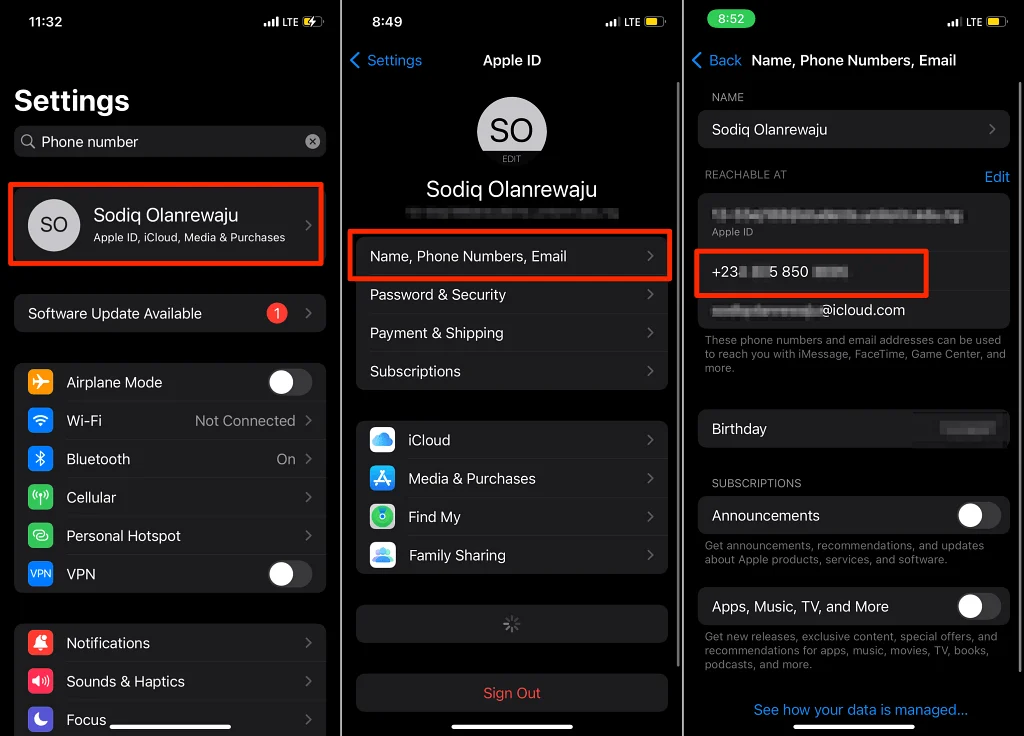
Your Apple ID is the heart of the Apple ecosystem. It connects your iPhone with services such as iCloud, FaceTime, Find My, Apple Pay, and the App Store. If your phone number has been verified with your Apple account, you can usually find it within your account settings.
Follow these steps:
- Open Settings.
- Tap your Apple ID at the top of the screen.
- Select Personal Information.
- Look for your Phone Number.
If you’ve enabled account recovery or two-factor authentication, this number is usually displayed here.
Keeping your phone number updated in your Apple ID is important because it helps protect your account and makes it easier to recover access if you ever forget your password.
Method 5: Check Your Number Through iMessage
Many iPhone users don’t realise that iMessage also stores their active phone number.
If your SIM card is working correctly and iMessage has been activated, your number should appear automatically.
Here’s how to check:
- Open Settings.
- Scroll down and tap Apps.
- Select Messages.
- Tap Send & Receive.
Under the section “You Can Receive iMessages To And Reply From”, you’ll usually see your registered mobile number. If you only see your Apple ID email address, your carrier may still be activating your SIM card.
Method 6: Find Your Number Using FaceTime
FaceTime uses the same contact information as iMessage. Checking FaceTime settings is another quick way to confirm your number.
Steps:
- Open Settings.
- Scroll to FaceTime.
- Look beneath Caller ID.
If everything is configured correctly, your phone number will appear here.
This is especially useful if you’ve recently restored your iPhone from an iCloud backup and want to confirm that your number has been registered correctly.
Method 7: Find Your Phone Number on an eSIM
More people than ever are using eSIM technology instead of traditional physical SIM cards. The latest iPhones support both physical SIMs and eSIMs, while some newer models rely entirely on eSIM technology.
Fortunately, checking your number is just as easy.
To find your eSIM number:
- Open Settings.
- Tap Mobile Service (or Cellular, depending on your region).
- Select your active eSIM plan.
- View the phone number associated with that plan.
If you’ve recently activated your eSIM, it may take a few minutes for your number to appear while your network completes the activation process.
What If Your iPhone Says “Unknown”?
One of the most common questions Apple users ask is:
Why does my iPhone say “Unknown” instead of showing my phone number?
This usually isn’t caused by your iPhone itself. Instead, it often relates to your SIM card or mobile network. Common reasons include:
- The SIM card hasn’t been fully activated.
- Your mobile network hasn’t programmed your number onto the SIM.
- The SIM card has been inserted incorrectly.
- The eSIM activation is still pending.
- Temporary network registration issues.
- Carrier settings need updating.
- A software bug after an iOS update.
The good news is that most of these issues are easy to resolve.
How to Fix a Missing Phone Number on iPhone
If your number isn’t showing anywhere, try the following troubleshooting steps.
1. Restart Your iPhone
A simple restart refreshes the network connection and often resolves temporary carrier issues.
Turn your iPhone off completely, wait around 30 seconds, then switch it back on.
2. Check Your SIM Card
Remove the SIM tray carefully.
Inspect the SIM card for:
- Dirt
- Dust
- Damage
- Scratches
Reinsert it securely before restarting your phone.
3. Update Carrier Settings
Apple regularly releases carrier updates to improve network compatibility. To check:
Settings → General → About
If a carrier update is available, your iPhone will prompt you to install it.
4. Confirm Mobile Network Activation
If you’ve only recently activated your SIM, your provider may still be processing the activation. Most UK networks complete activation within a few minutes, although some may take several hours.
5. Reset Network Settings
If network information has become corrupted, resetting your network settings may help. Go to:
Settings → General → Transfer or Reset iPhone → Reset → Reset Network Settings
Keep in mind that this will remove saved Wi-Fi passwords, so you’ll need to reconnect afterwards.
Recently Bought a Refurbished iPhone?
Many customers purchase a refurbished iPhone and immediately begin restoring their apps, photos, and contacts without checking whether the SIM card has been activated correctly.
Before transferring everything across, it’s worth taking a few minutes to confirm:
- Your phone number is displaying correctly.
- Mobile data is working.
- Calls can be made and received.
- SMS messages are sending successfully.
- FaceTime has activated.
- iMessage is using your phone number.
- Your Apple ID is signed in correctly.
Completing these checks early can prevent activation issues later.
If you’re still moving to your new device, don’t miss our guide on How to Transfer Data to a New iPhone. It explains the safest way to move your apps, photos, contacts, and settings without losing important information.
You should also check your battery’s condition once your new device is set up. Our guide on How to Check My Phone Battery Health? explains how to view battery health and what percentage is considered normal for a refurbished iPhone.
Why Checking Your Phone Number Matters When Buying Refurbished
Purchasing a refurbished iPhone is one of the smartest ways to save money while still enjoying Apple’s premium hardware. However, once your new device arrives, it’s important to complete a few essential setup checks before using it as your primary phone.
Alongside checking your phone number, you should also:
- Sign in with your Apple ID.
- Restore your iCloud backup.
- Verify Face ID is working.
- Test the cameras and speakers.
- Confirm Wi-Fi and Bluetooth connectivity.
- Check battery health.
- Ensure your SIM or eSIM has activated correctly.
At iExpert Market, every refurbished iPhone is professionally tested, factory reset, and quality checked before dispatch. Whether you choose an iPhone 13, iPhone 15, or the latest iPhone 17, confirming your mobile number during setup helps ensure you’re ready to make calls, send messages, and use Apple services straight away.
How to Find Your Phone Number on Samsung & Android Devices
Android smartphones are available from many manufacturers, but the process of finding your phone number is generally very similar across all devices. Whether you’re using a Samsung Galaxy, Google Pixel, Motorola, OnePlus, Xiaomi, Oppo, or Vivo phone, Android stores your mobile number within the system settings and SIM information.
If you’ve recently upgraded to a refurbished Android phone, checking your number should be one of the first things you do after inserting your SIM card or activating an eSIM. Confirming that your number is recognised correctly ensures you can make calls, receive text messages, and use services like Google Messages, WhatsApp, and online banking without interruption.
Let’s start with Samsung, as it’s the most popular Android brand in the UK.
How to Find Your Phone Number on Samsung Galaxy Phones
Samsung’s One UI software makes it easy to locate your mobile number. The exact menu names may differ slightly depending on the version of Android you’re using, but the overall process remains the same.
These methods work on most Samsung Galaxy devices, including:
- Galaxy S20 Series
- Galaxy S21 Series
- Galaxy S22 Series
- Galaxy S23 Series
- Galaxy S24 Series
- Galaxy S25 Series
- Galaxy S26 Series
- Galaxy A Series
- Galaxy Z Flip
- Galaxy Z Fold
Whether your phone is brand new or professionally refurbished, these steps will help you find your number quickly.
Method 1: Check Your Number in Settings
The fastest way to view your phone number is through the Settings app.
Follow these steps:
- Open Settings.
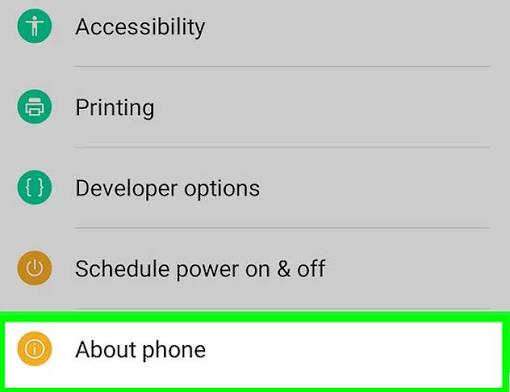
- Scroll down and tap About Phone.
- Look for Phone Number.
If your SIM card has been activated successfully, your mobile number will appear alongside other device information such as the model number and IMEI.
This is the easiest method for most Samsung users and usually takes less than a minute.
Method 2: View Your SIM Information
If your phone supports one or two SIM cards, Samsung also displays the associated numbers in the SIM Manager.
Here’s how:
- Open Settings.
- Tap Connections.
- Select SIM Manager.
- Choose the active SIM.
Your registered mobile number may appear beneath the network name. This method is especially useful for dual-SIM users who need to identify which number belongs to each SIM card.
Method 3: Check Your Samsung Account
Your Samsung Account may also contain your registered phone number.
To check:
- Open Settings.
- Tap your Samsung Account profile.
- Select Personal Information.
If you’ve added your mobile number for account security or recovery, it will appear here.
Keeping this information up to date is important because it helps protect your Samsung account and makes password recovery much easier.
Method 4: View Your Contact Profile
Like Apple devices, Samsung phones often create a personal contact card during setup.
To check:
- Open the Contacts app.
- Tap your profile at the top.
- Review your saved information.
Many users manually save their own number here, making it easy to access whenever needed.
Method 5: Check Through Your Google Account
If you’ve linked your Android phone to a Google Account, your number may also be stored there.
Steps:
- Open Settings.
- Tap Google.
- Select Manage Your Google Account.
- Open the Personal Info tab.
Your phone number may appear under contact information. This is particularly useful if you’ve recently restored your Android device from a Google backup.
Recently Bought a Refurbished Samsung Phone?
Buying a refurbished Samsung Galaxy is an excellent way to enjoy flagship performance while saving money. However, before you start installing apps and personalising your device, it’s worth completing a few basic checks.
Make sure you can:
- View your phone number.
- Make and receive calls.
- Send text messages.
- Connect to mobile data.
- Sign in to your Google Account.
- Update your software.
- Confirm your battery and charging performance.
These simple checks ensure your device is ready for everyday use from the moment you switch it on.
If you’re thinking about upgrading in the future, iExpert Market offers a wide range of Refurbished Samsung Phones, including popular Galaxy S, Galaxy A, Galaxy Z Flip, and Galaxy Z Fold models. Every device is professionally tested, SIM-free, and backed by a 12-month warranty, giving you confidence while saving significantly compared to buying new.
How to Find Your Phone Number on Other Android Phones
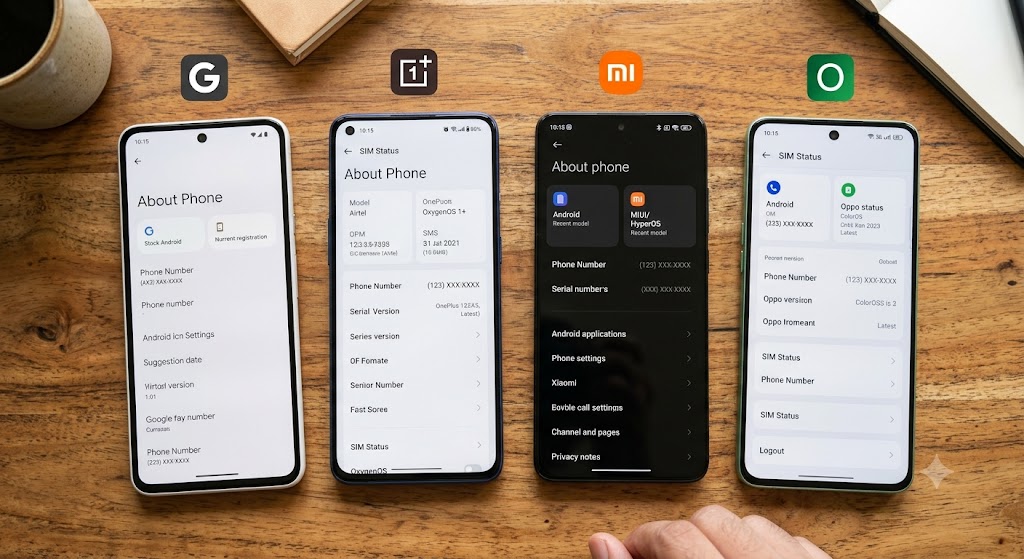
Although Samsung is one of the largest Android manufacturers, millions of people in the UK also use smartphones from brands such as Google, Motorola, OnePlus, Xiaomi, Oppo, and Vivo.
Fortunately, Android uses a similar layout across most devices, making it easy to find your number regardless of the manufacturer.
1. Google Pixel
Google Pixel phones use a clean version of Android, making navigation straightforward.
Steps:
- Open Settings.
- Scroll to About Phone.
- Tap Phone Number.
Your active number should be displayed here.
2. Motorola Phones
Motorola devices store the number within system settings.
Steps:
- Open Settings.
- Select System.
- Tap About Phone.
- View Phone Number.
3. OnePlus Phones
For OnePlus users:
- Open Settings.
- Tap About Device.
- Select Status.
- View your registered phone number.
4. Xiaomi Phones
If you’re using Xiaomi’s HyperOS or MIUI software:
- Open Settings.
- Tap SIM Cards & Mobile Networks.
- Select your active SIM.
Your number may be displayed beneath the carrier information.
5. Oppo Phones
Oppo devices follow a similar process.
- Open Settings.
- Tap About Device.
- Select SIM Status.
Your mobile number should appear if your SIM has been activated correctly.
6. Vivo Phones
For Vivo smartphones:
- Open Settings.
- Select System Information.
- Open Phone Information.
Here you’ll usually find your mobile number together with your IMEI and network details.
Why Your Android Phone Might Not Show Your Number
Occasionally, Android phones display “Unknown Number” or leave the phone number field blank. This doesn’t necessarily mean there’s a fault with your device. In most cases, the issue lies with the SIM card or mobile network.
Common causes include:
- The SIM card hasn’t been activated.
- Your carrier hasn’t written the number to the SIM.
- You’re using a replacement SIM.
- The SIM card is damaged.
- Network registration hasn’t completed.
- You’re using a newly activated eSIM.
- Software settings need refreshing.
Fortunately, these issues are usually easy to resolve using the troubleshooting steps we’ll cover in the next section.
What If You Still Can’t Find Your Phone Number?
Sometimes, even after checking your Settings app, SIM information, or contacts, your phone number still doesn’t appear. This is more common than many people think and usually isn’t a fault with your phone.
There are several reasons why this can happen:
- Your mobile network hasn’t written the number to the SIM card.
- You’re using a brand-new SIM that hasn’t been fully activated.
- The SIM card has been replaced recently.
- The number information was accidentally deleted from the SIM.
- Your carrier simply doesn’t store the number on the SIM.
The good news is that this doesn’t usually affect your ability to make calls, send texts, or use mobile data. It only means your device cannot automatically display your own number.
If you’ve tried every method in this guide and still can’t locate it, contact your mobile network provider. They can verify your account and confirm the number registered to your SIM within minutes.
Does Buying a Refurbished Phone Affect Your Phone Number?
One question many buyers ask is whether switching to a refurbished phone changes their mobile number. The answer is simple:
No. Your phone number belongs to your SIM card or eSIM – not the handset itself.
Whether you buy:
- a refurbished iPhone,
- a refurbished Samsung phone,
- a brand-new device,
- or even switch between Android and iPhone,
your number stays exactly the same as long as you continue using the same SIM or transfer your eSIM correctly.
This is one of the biggest advantages of upgrading to a refurbished device. You enjoy better performance while keeping your existing phone number, contacts, WhatsApp account, banking apps, and other services connected to that number.
If you’re planning an upgrade, you may also find these buying guides useful:
- Complete Guide to Choosing the Best Refurbished iPhone
- Refurbished vs Second-Hand Phones: What’s the Difference?
- What Are the Different Refurbished Grades?
- Where to Buy Phones in the UK
- How to Transfer Data to a New iPhone
These resources explain how to move your data safely while keeping your mobile number unchanged.
Finding Your Number After Moving to a Refurbished iPhone
If you’ve recently upgraded to a refurbished iPhone from iExpert Market and inserted your existing SIM card, your phone number should normally appear automatically.
To check it:
Settings → Phone → My Number
If it isn’t shown immediately, try:
- Restarting the iPhone.
- Waiting a few minutes for the network to refresh.
- Turning Airplane Mode on and off.
- Re-inserting the SIM card.
- Updating the carrier settings if prompted.
If your number still doesn’t appear, your network provider can refresh the SIM information remotely. A refurbished iPhone itself does not remove or change your number.
Finding Your Number After Moving to a Refurbished Samsung Phone
The same applies when upgrading to a refurbished Samsung Galaxy device. Insert your SIM card, then check:
Settings → About Phone → Phone Number
If the field is empty:
- Restart the device.
- Update carrier settings.
- Check the SIM card is seated correctly.
- Contact your mobile carrier if necessary.
Remember, the Samsung phone simply reads the information stored by your network. The device isn’t responsible for assigning your phone number.
Why Knowing Your Own Phone Number Matters
Many people don’t think about their own number until they suddenly need it. Knowing your number makes everyday tasks much easier, including:
- Creating online accounts.
- Two-factor authentication (2FA).
- Online banking verification.
- WhatsApp registration.
- Google account recovery.
- Apple ID verification.
- Samsung account setup.
- Contact sharing.
- Emergency situations.
- Business communication.
Saving your own number in your contacts is a simple habit that can save time whenever you switch devices or SIM cards.
What If You Still Can’t Find Your Phone Number?
Sometimes, even after checking your Settings app, SIM information, or contacts, your phone number still doesn’t appear. This is more common than many people think and usually isn’t a fault with your phone.
There are several reasons why this can happen:
- Your mobile network hasn’t written the number to the SIM card.
- You’re using a brand-new SIM that hasn’t been fully activated.
- The SIM card has been replaced recently.
- The number information was accidentally deleted from the SIM.
- Your carrier simply doesn’t store the number on the SIM.
The good news is that this doesn’t usually affect your ability to make calls, send texts, or use mobile data. It only means your device cannot automatically display your own number.
If you’ve tried every method in this guide and still can’t locate it, contact your mobile network provider. They can verify your account and confirm the number registered to your SIM within minutes.
Does Buying a Refurbished Phone Affect Your Phone Number?
One question many buyers ask is whether switching to a refurbished phone changes their mobile number. The answer is simple:
No. Your phone number belongs to your SIM card or eSIM – not the handset itself.
Whether you buy:
- a refurbished iPhone,
- a refurbished Samsung phone,
- a brand-new device,
- or even switch between Android and iPhone,
your number stays exactly the same as long as you continue using the same SIM or transfer your eSIM correctly.
This is one of the biggest advantages of upgrading to a refurbished device. You enjoy better performance while keeping your existing phone number, contacts, WhatsApp account, banking apps, and other services connected to that number.
Finding Your Number After Moving to a Refurbished iPhone
If you’ve recently upgraded to a refurbished iPhone from iExpert Market and inserted your existing SIM card, your phone number should normally appear automatically.
To check it:
Settings → Phone → My Number
If it isn’t shown immediately, try:
- Restarting the iPhone.
- Waiting a few minutes for the network to refresh.
- Turning Airplane Mode on and off.
- Re-inserting the SIM card.
- Updating the carrier settings if prompted.
If your number still doesn’t appear, your network provider can refresh the SIM information remotely. A refurbished iPhone itself does not remove or change your number.
Finding Your Number After Moving to a Refurbished Samsung Phone
The same applies when upgrading to a refurbished Samsung Galaxy device. Insert your SIM card, then check:
Settings → About Phone → Phone Number
If the field is empty:
- Restart the device.
- Update carrier settings.
- Check the SIM card is seated correctly.
- Contact your mobile carrier if necessary.
Remember, the Samsung phone simply reads the information stored by your network. The device isn’t responsible for assigning your phone number.
Why Knowing Your Own Phone Number Matters
Many people don’t think about their own number until they suddenly need it. Knowing your number makes everyday tasks much easier, including:
- Creating online accounts.
- Two-factor authentication (2FA).
- Online banking verification.
- WhatsApp registration.
- Google account recovery.
- Apple ID verification.
- Samsung account setup.
- Contact sharing.
- Emergency situations.
- Business communication.
Saving your own number in your contacts is a simple habit that can save time whenever you switch devices or SIM cards.
Phone Number Still Not Showing? Here’s How to Fix It
If your phone number still isn’t appearing after following the methods above, don’t panic. In most cases, the issue is caused by your SIM card, carrier settings, or network configuration—not by the phone itself.
Work through the following troubleshooting steps one by one. Most users are able to resolve the problem within a few minutes.
1. Restart Your Phone
It may sound simple, but restarting your device refreshes the mobile network connection and reloads your SIM information.
On iPhone
- Press and hold the Side button with either Volume button.
- Slide to power off.
- Wait about 30 seconds.
- Turn the phone back on.
On Samsung & Android
- Hold the Power button.
- Tap Restart.
- Wait for the phone to reconnect to the network.
Once your phone has restarted, check the Phone settings again to see whether your number now appears.
2. Toggle Airplane Mode
Sometimes your device simply needs to reconnect to your mobile network. Turn Airplane Mode on for around 20 – 30 seconds before switching it off again.
This forces your phone to establish a fresh network connection and often restores missing SIM information.
3. Remove and Reinsert the SIM Card
A loose or poorly seated SIM card can prevent your phone from reading account information correctly. Before removing the SIM:
- Switch the phone off.
- Use the correct SIM eject tool.
- Carefully inspect the SIM for dust or damage.
- Clean it gently with a soft, dry cloth if necessary.
- Reinsert the SIM securely.
- Turn the phone back on.
If the SIM card isn’t detected correctly, your phone may be unable to display your mobile number.
4. Check Whether Your SIM Card Is Activated
This issue commonly affects people who have:
- Purchased a brand-new SIM.
- Recently switched networks.
- Requested a replacement SIM.
- Moved their number to another carrier.
If activation is still pending, your number may not appear in your device settings even though the SIM is inserted. Wait until your carrier confirms activation or contact their customer support.
5. Update Carrier Settings
Network providers occasionally release carrier updates that improve connectivity and correct SIM-related information.
iPhone
Go to:
Settings → General → About
If a carrier update is available, you’ll receive a notification. Install it and restart your phone.
Samsung & Android
Carrier settings are usually updated automatically through software updates.
To check manually:
Settings → Software Update
Install any available updates before checking your phone number again.
6. Install the Latest Software Update
Running outdated software can sometimes prevent certain network information from displaying correctly. Keeping your device updated improves:
- Network compatibility
- SIM recognition
- Security
- Performance
- Stability
Updating your software is recommended whether you’re using a new or refurbished smartphone.
7. Try Your SIM Card in Another Phone
One of the quickest ways to identify the source of the problem is to test your SIM card in another working device.
| If this happens… | It usually means… |
|---|---|
| Number appears in another phone | Your original phone may need troubleshooting. |
| Number doesn’t appear anywhere | The issue is likely with your SIM or network provider. |
| SIM isn’t detected | The SIM card may be damaged or inactive. |
| Another SIM works perfectly in your phone | Your original SIM probably needs replacing. |
This simple test helps determine whether the problem lies with the handset or the SIM itself.
8. Contact Your Mobile Network Provider
If none of the above solutions work, the final step is to contact your carrier. They can:
- Confirm your registered phone number.
- Refresh your SIM profile.
- Reactivate your SIM.
- Replace a faulty SIM card.
- Resolve network account issues.
In many cases, the fix takes only a few minutes.
Expert Tip from iExpert Market
If you’ve recently upgraded to a refurbished iPhone or refurbished Samsung phone, don’t assume the handset is responsible if your number isn’t showing.
Your mobile number is stored and managed by your network provider, not the phone itself. Professionally refurbished devices work exactly like new devices when reading SIM card information.
At iExpert Market, every refurbished smartphone is thoroughly tested before sale to ensure reliable SIM detection, network connectivity, and day-to-day performance. That means if your number isn’t displaying, the cause is almost always related to the SIM card or your carrier – not the refurbished device.
Common Mistakes People Make When Trying to Find Their Phone Number
Finding your phone number is usually straightforward, but many people make simple mistakes that lead to unnecessary confusion. Whether you’re using an iPhone, Samsung Galaxy, or another Android device, avoiding these common errors can save time and help you find your number much faster.
If you’ve recently switched to a refurbished phone, these tips are equally important, as the process is exactly the same as it is on a brand-new device.
1. Assuming the Phone Stores Your Mobile Number
One of the biggest misconceptions is believing that your mobile number is permanently stored in the phone itself.
In reality, your phone number is assigned by your mobile network and is linked to your SIM card or eSIM. Changing phones doesn’t change your number, provided you continue using the same SIM or successfully transfer your eSIM.
This is why moving from an older handset to a refurbished iPhone or Samsung Galaxy doesn’t affect your mobile number.
2. Forgetting to Insert the SIM Card
Many users try to find their phone number before inserting their SIM card.
Without an active SIM or eSIM, most smartphones have no mobile number to display. Instead, you’ll often see messages such as “Unknown”, “Unavailable”, or a blank field under your phone information.
Before troubleshooting anything else, make sure your SIM is correctly installed and your phone has connected to your carrier.
3. Confusing IMEI With a Phone Number
Another common mistake is thinking the IMEI number is your mobile number. These are completely different.
| Phone Number | IMEI Number |
|---|---|
| Used for calls and text messages | Identifies the physical device |
| Assigned by your mobile network | Assigned by the phone manufacturer |
| Can change if you change SIM cards | Stays with the phone permanently |
| Shared with friends and family | Mainly used for security, warranty, and insurance |
4. Ignoring Network Activation
A newly activated SIM card may not display your number immediately.
Sometimes your carrier needs a little time to complete the activation process. During this period, your phone may temporarily show “Unknown Number” even though everything is working correctly. Waiting a few minutes or restarting the device usually resolves the issue.
5. Buying From Untrusted Sellers
Some people assume every refurbished phone is prepared to the same standard. Unfortunately, that’s not always true.
Buying from an unreliable seller may result in receiving a device that hasn’t been properly tested, securely wiped, or professionally inspected.
6. Skipping Data Transfer Before Changing Phones
Many users focus on checking their phone number but forget to move important data from their old device.
Before switching to a refurbished smartphone, make sure you’ve transferred your contacts, photos, messages, and apps. This helps ensure a smooth transition without losing important information.
FAQs About How to Find Your Phone Number (iPhone & Android)
1. How can I find my phone number on an iPhone?
Open Settings > Phone > My Number or go to Settings > Apple Account > Personal Information (depending on your iOS version). You can also view your number in the Phone app or Contacts.
2. How do I check my phone number on a Samsung Galaxy phone?
Go to Settings > About Phone > Phone Number. If it isn’t displayed, open the Contacts app or use your network provider’s mobile app.
3. Why is my phone number not showing on my device?
Your number may not appear if your SIM card isn’t activated correctly, the carrier hasn’t programmed the number, or your network settings need updating.
4. Can I find my phone number without opening Settings?
Yes. You can open the Contacts app and view your own contact card, dial another phone to see your caller ID, or use your mobile network’s account app.
5. Does a refurbished phone have the previous owner’s phone number?
No. Certified refurbished phones are factory reset before being sold. The previous owner’s personal information, accounts, and phone number are completely removed.
6. Does buying a refurbished phone change my phone number?
No. Your phone number is stored on your SIM card or eSIM, not on the phone itself.
7. Can I use the same SIM card in a refurbished phone?
Yes. Simply insert your existing SIM card into your refurbished phone, and your mobile number will remain the same.
8. How do I find my phone number if my SIM card is inactive?
If your SIM isn’t active, your phone may not display the number. Contact your mobile network to confirm activation or request your registered number.
9. Can I find my phone number using a dial code?
Many UK mobile networks support USSD codes, but these vary by provider. If the code doesn’t work, check your network’s official support page or mobile app.
10. Where is my phone number stored?
Your mobile number is assigned by your network provider and linked to your SIM card or eSIM profile, not the physical handset.
11. Why does my phone show “Unknown Number”?
This usually happens when the SIM hasn’t been fully activated, the carrier hasn’t written the number to the SIM, or there’s a temporary network issue.
12. Can I find my number without a SIM card?
No. Without an active SIM card or eSIM, your phone generally cannot display an assigned mobile number.
13. Will resetting my phone remove my phone number?
No. A factory reset removes your personal data from the device but doesn’t change the phone number associated with your SIM card.
Final Thoughts
Knowing how to find your phone number is a simple but essential skill that every smartphone user should have. Whether you’ve just switched to a new SIM card, upgraded to a refurbished device, or are setting up your phone for the first time, the process is quick once you know where to look. From iPhones and Samsung Galaxy phones to other Android devices, this guide has covered every reliable method to help you locate your mobile number with confidence.
Remember, your phone number is linked to your SIM card or eSIM, not the phone itself. That’s why buying a professionally refurbished device won’t affect your existing number or mobile service. Instead, you’ll enjoy the same great smartphone experience while saving money and making a more sustainable choice.
At iExpert Market, every refurbished iPhone, Samsung phone, iPad, MacBook, tablet, and laptop is professionally tested, securely wiped, quality checked, and backed by a 12-month warranty, giving you complete confidence with every purchase. Whether you’re upgrading to the latest flagship or looking for a reliable budget-friendly device, you’ll find premium technology at exceptional value.
If your current phone has a damaged screen, battery problems, charging issues, camera faults, or any other hardware problem, iExpert Repairs is here to help. Our expert technicians provide fast, professional repair services using high-quality replacement parts, helping you extend the life of your device and avoid the cost of buying a new one.
Back to posts