Introduction
“Imagine waking up one day and all your photos, messages, and contacts are gone forever – this happens to millions of people who never backed up their iPhone.”
Fortunately, Apple makes it easy to protect your information with iCloud Backup. You can back up your iPhone directly from the device without needing a computer or extra software.
In this guide, you’ll learn how to backup iPhone on the phone, what data gets saved, and how to ensure your backup is completed successfully.
Why You Should Regularly Backup Your iPhone?
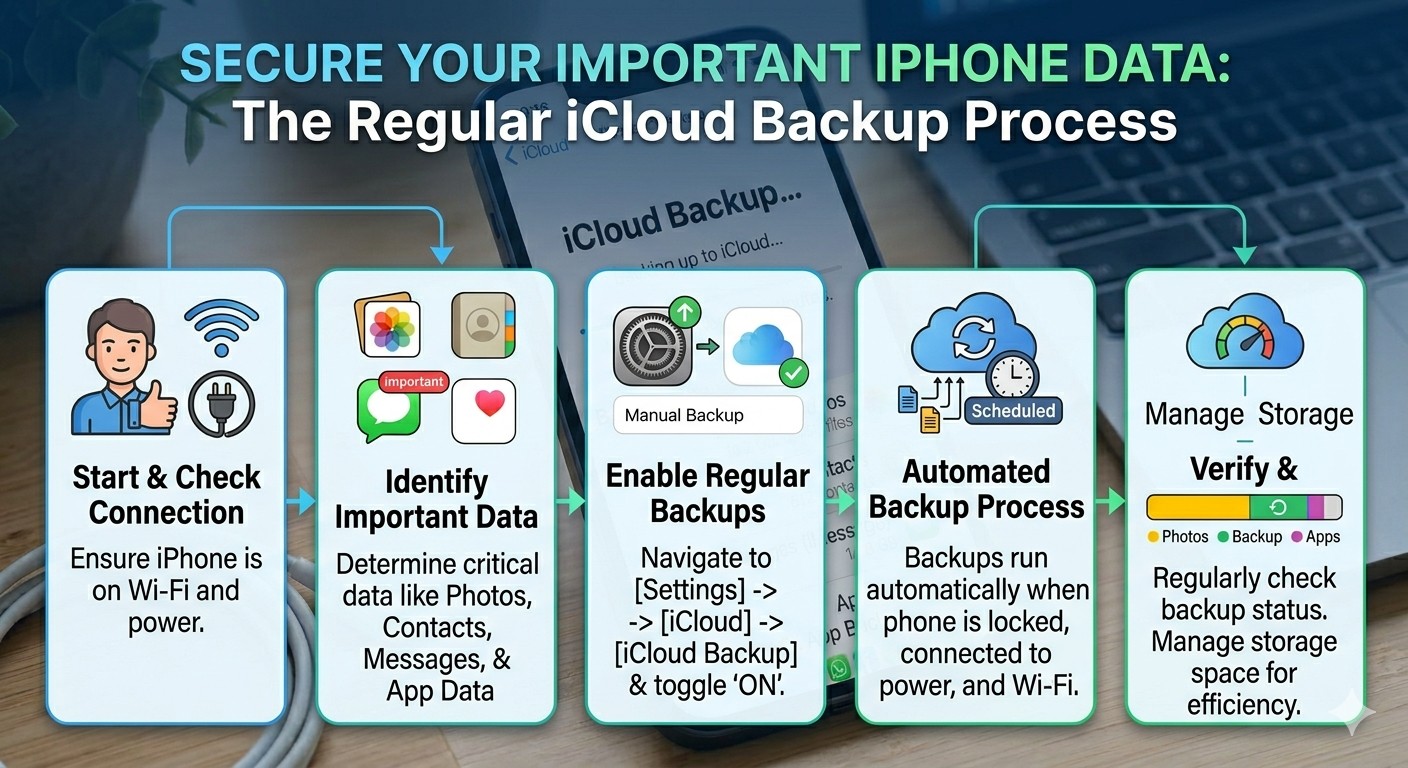
Many users assume that data loss only happens to other people. In reality, damaged devices, accidental deletions, and software failures occur every day.
Let’s explore the biggest reasons why regular backups are essential.
Protection Against Accidental Data Loss
One of the most common reasons for data loss is simple human error.
A photo album can be deleted accidentally. Important notes may disappear during app updates. Messages containing valuable information can be removed without realizing their importance. Having a backup allows you to recover information that would otherwise be lost forever.
Instead of worrying about mistakes, you gain peace of mind knowing your files are protected.
Easier Device Upgrades
Upgrading to a newer iPhone is exciting, but transferring years of data manually can be frustrating.
A recent backup simplifies the process significantly. When setting up a new device, you can restore your backup and continue using your phone with familiar settings, apps, contacts, and personal preferences.
Many customers purchasing refurbished iPhones choose this method because it reduces setup time and helps preserve important information.
Recovery After Theft or Loss
Smartphone theft remains a concern for many users.
Even if the physical device cannot be recovered, a recent backup allows you to restore your information onto another iPhone. Without a backup, valuable memories and essential files may disappear permanently.
Regular backups help minimize the impact of unexpected situations.
Protection During Software Updates
Apple regularly releases iOS updates to improve performance, security, and functionality.
Most updates install without any issues. However, software problems can occasionally occur. Creating a backup before updating your iPhone ensures that your information remains safe if the installation process encounters an unexpected problem.
This extra precaution only takes a few minutes but can save hours of frustration.
Security Against Hardware Failure
Although iPhones are known for reliability, no electronic device lasts forever.
Batteries degrade over time, storage components can fail, and accidental drops may cause serious damage.
If a hardware issue prevents access to your device, a backup may be the only way to recover your information.
This is particularly important for users who keep important work files, personal documents, or family photos on their phones.
Better Long-Term Data Management
Backups are not only useful during emergencies. They also help you maintain organized access to your information over time.
As you switch devices, reset settings, or troubleshoot software issues, backups provide a convenient way to restore your preferred setup without starting from scratch. For users invested in the Apple ecosystem, this creates a smoother experience across iPhones, iPads, and other Apple devices.
What Does iCloud Backup Include?
Before creating a backup, it’s helpful to understand what iCloud Backup saves and what it does not. This can help you avoid confusion and ensure your important data is properly protected.
| Included in iCloud Backup | Not Included in iCloud Backup |
|---|---|
| App data and settings | Data already stored in iCloud (Photos, Contacts, Notes, etc.) |
| Device settings | Content synced from Finder or iTunes |
| Home Screen and app organization | Apple Mail data already stored on mail servers |
| iMessage, SMS, and MMS messages | Face ID and Touch ID settings |
| Photos and videos stored locally on the device | Apple Pay information and saved cards |
| Health and HomeKit data (encrypted) | Downloaded content that can be re-downloaded |
| Ringtones and visual voicemail settings | Temporary system files and caches |
Understanding what is and isn’t included in an iCloud Backup helps ensure you have realistic expectations when restoring your iPhone or transferring data to a new device.
Things You Need Before Backing Up Your iPhone

Before starting the backup process, there are a few requirements you should check. Preparing these items beforehand helps ensure a smooth and successful backup.
A Stable Wi-Fi Connection
iCloud backups require internet access. Because backups often contain large amounts of data, a strong Wi-Fi connection is recommended.
Attempting to create a backup using an unstable network may result in interruptions or failed uploads.
An Active Apple ID
Your Apple ID acts as the gateway to Apple’s cloud services. Make sure you are signed into the correct Apple account before beginning the backup process.
You can verify this by opening the Settings app and checking the account name displayed at the top of the screen.
Available iCloud Storage
Apple provides every user with 5GB of free iCloud storage. For some users, this may be enough. However, if your device contains thousands of photos and videos, additional storage may be required.
Checking available space beforehand helps avoid backup failures later.
Sufficient Battery Life
Although backups can run while charging, it is a good idea to ensure your battery has enough power before starting. Apple often recommends connecting the device to a charger during larger backups.
This prevents interruptions caused by low battery levels.
Updated iOS Software
Running the latest version of iOS helps ensure compatibility with Apple’s backup services. Software updates frequently include bug fixes that improve reliability and security.
Taking a moment to verify that your device is up to date can help prevent unnecessary backup issues.
How to Backup iPhone on the Phone Using iCloud?
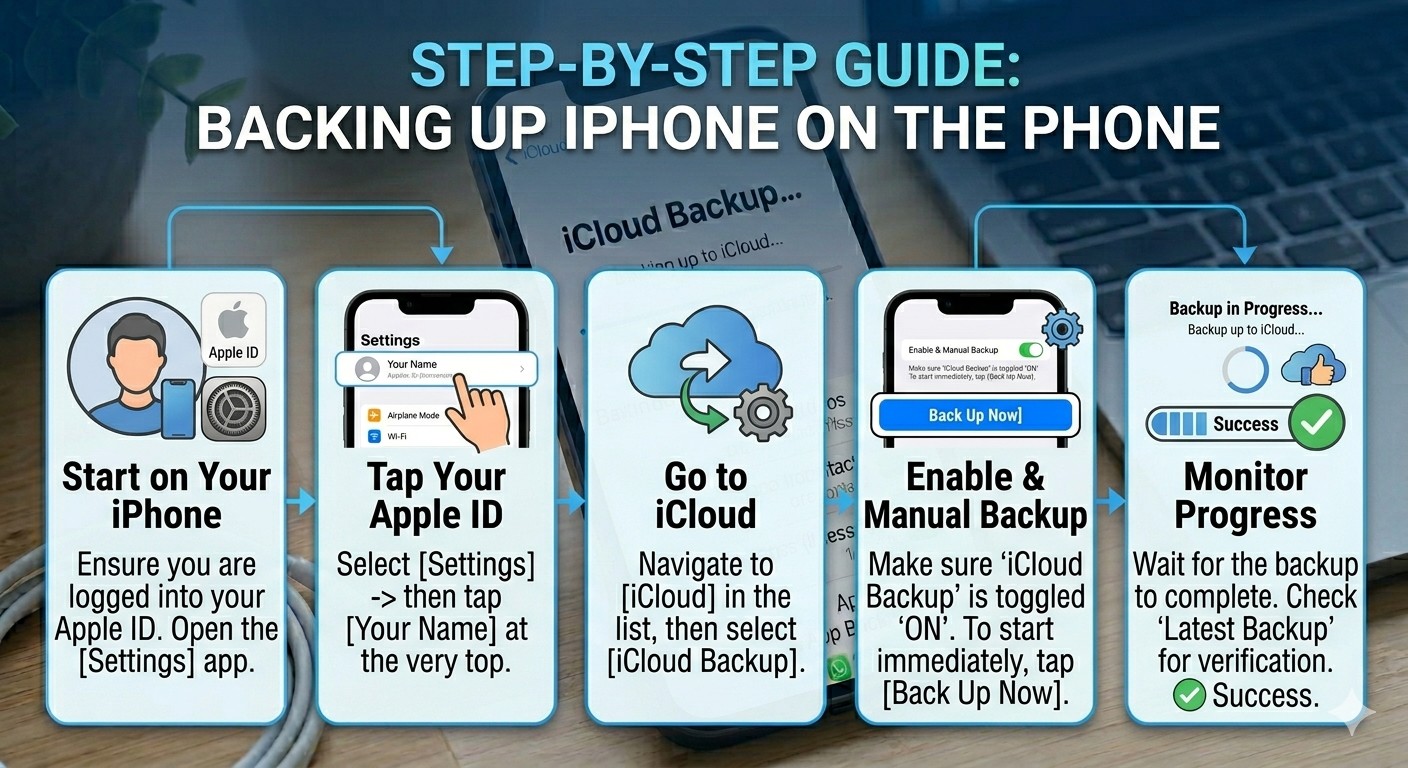
Now that you understand why backups are important and what you need before starting, it’s time to create your backup directly from your iPhone.
Apple’s iCloud Backup feature is designed to be simple and user-friendly. Even if you’ve never created a backup before, the entire process can usually be completed in just a few minutes.
The exact steps may vary slightly depending on your iOS version, but the process remains largely the same across modern iPhones.
Step 1: Open the Settings App
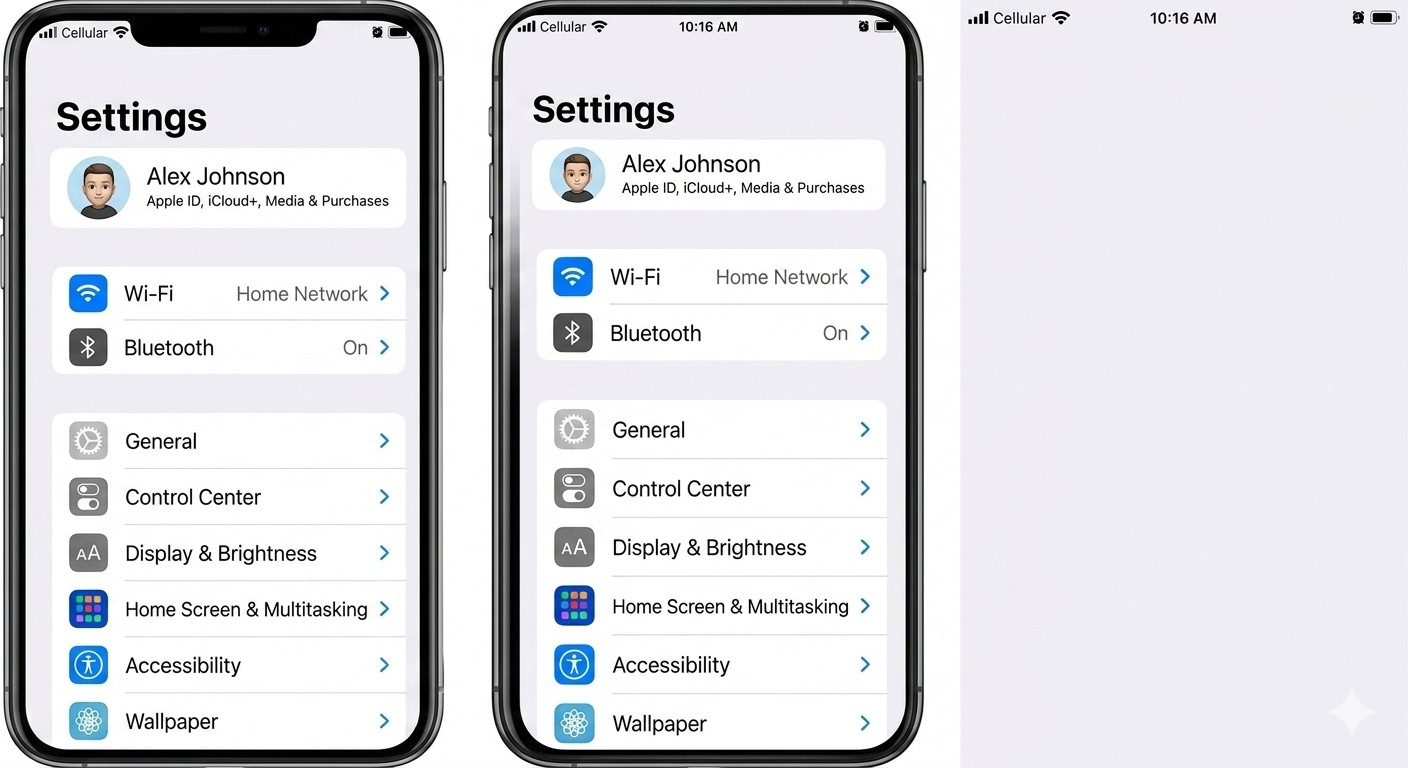
Start by unlocking your iPhone and opening the Settings app.
The Settings icon usually appears on your home screen and is represented by a grey gear symbol. This section contains all device configuration options, including iCloud settings and backup management tools.
Step 2: Tap Your Apple ID

At the very top of the Settings menu, you’ll see your name and Apple ID profile.
Tap on your name to open your Apple account settings.
This area manages:
- iCloud services
- Payment methods
- Family Sharing
- Device syncing
- Apple subscriptions
- Backup settings
If you are not signed into an Apple ID, you will need to do so before continuing.
Step 3: Select iCloud
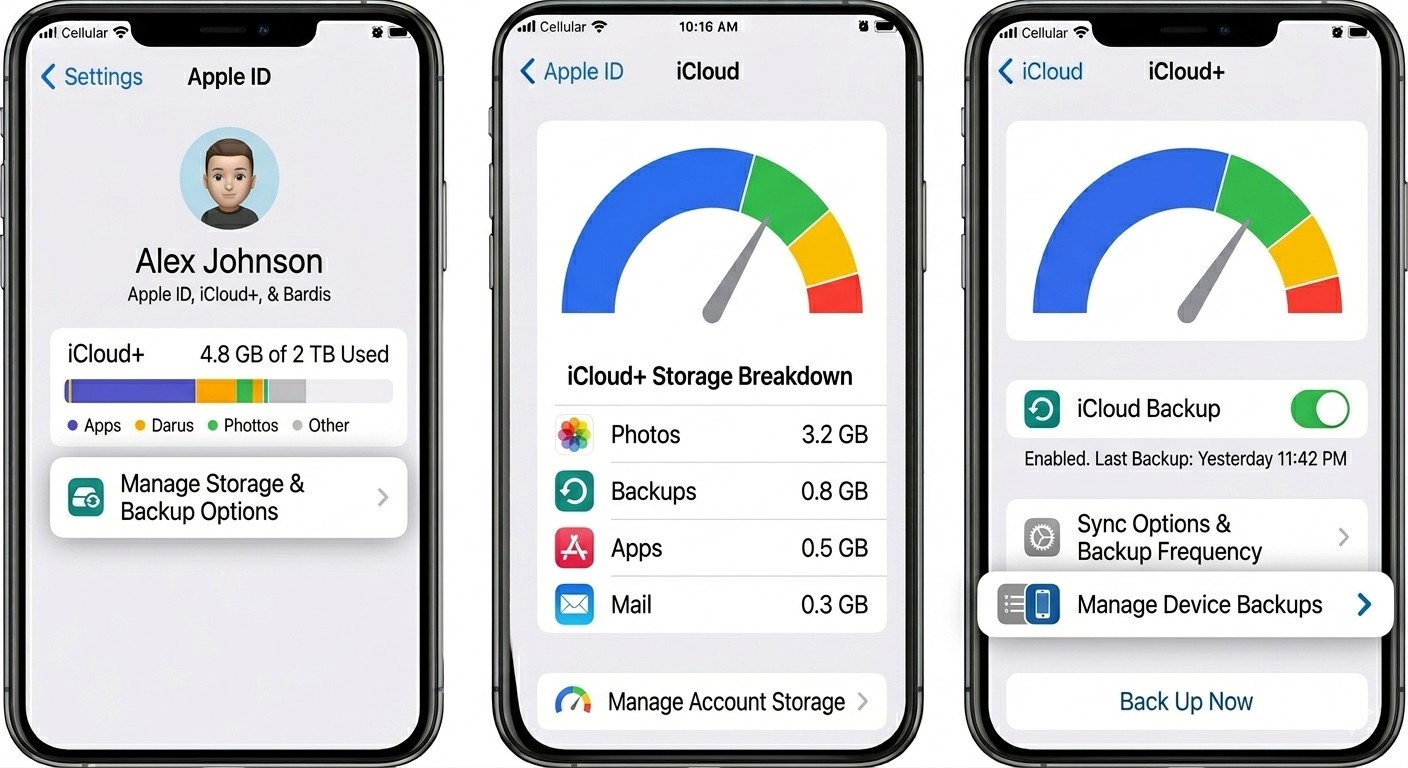
Inside your Apple ID settings, locate and tap iCloud.
This section shows how much cloud storage you currently have available and which Apple services are using that storage.
You’ll also find settings for:
- Photos
- Contacts
- Notes
- Passwords
- Device backups
Take a moment to review your available storage before proceeding.
Step 4: Open iCloud Backup

Scroll down until you find iCloud Backup.
Tap it to access backup settings.
Here you’ll see whether automatic backups are currently enabled. Many users discover that backups have been disabled without realizing it, making this an important setting to check regularly.
Step 5: Turn On iCloud Backup
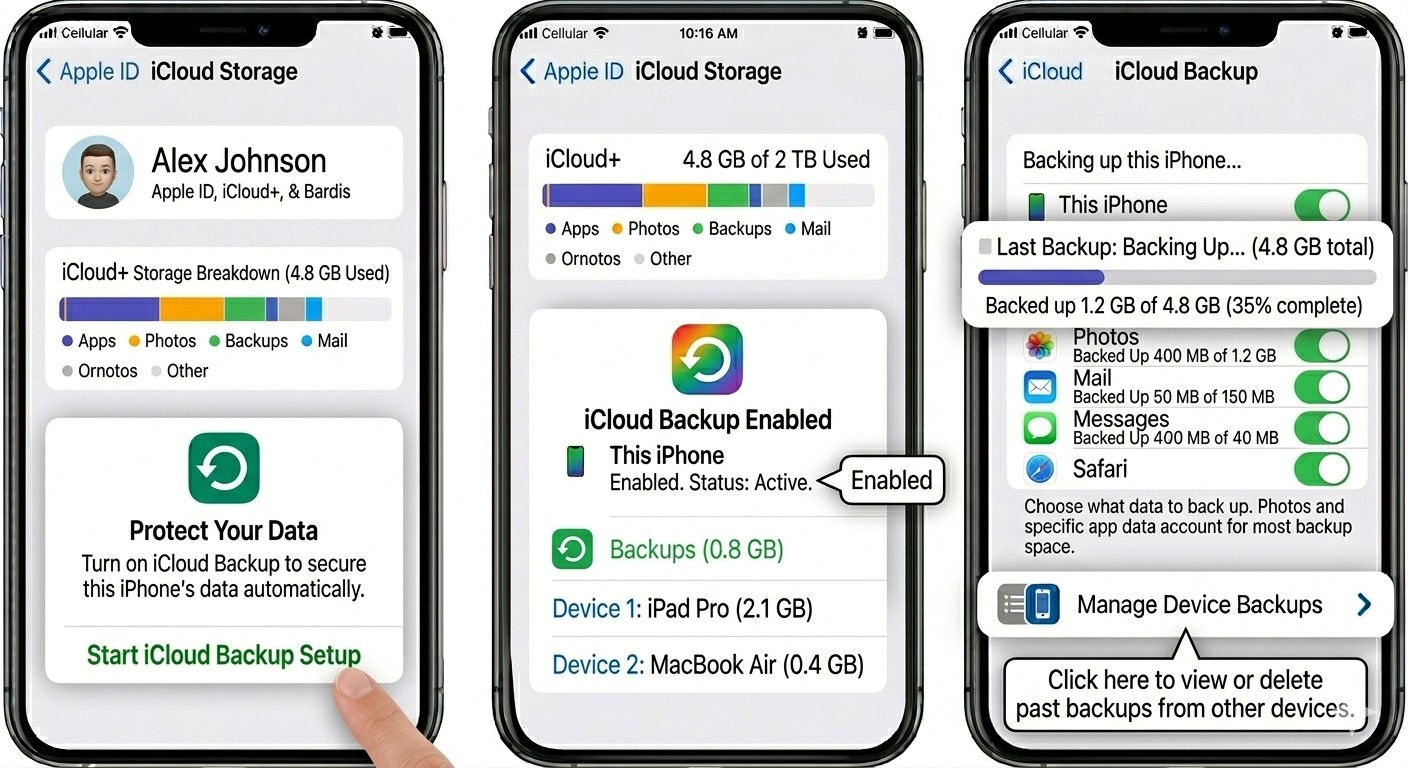
If iCloud Backup is switched off, tap the toggle to enable it.
Once activated, your iPhone can automatically create backups when:
- The device is connected to Wi-Fi
- The phone is charging
- The screen is locked
- Sufficient iCloud storage is available
Automatic backups help ensure your information stays protected without requiring manual action every day.
Step 6: Tap “Back Up Now”
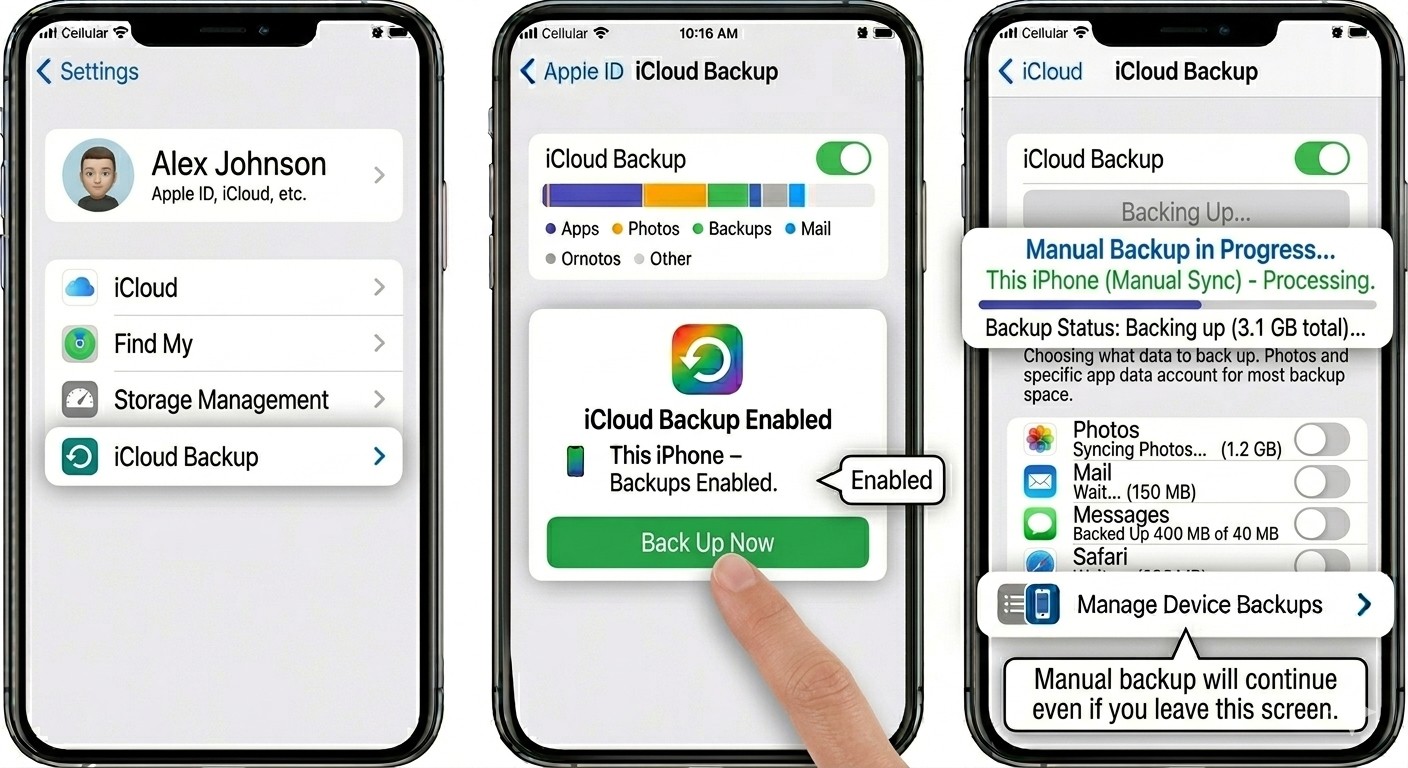
After enabling iCloud Backup, tap Back Up Now.
Your iPhone will immediately begin creating a backup.
The first backup often takes longer than future backups because Apple must upload all selected data for the first time.
During the process:
- Keep Wi-Fi connected
- Avoid switching networks
- Keep the device charged if possible
- Do not disable iCloud Backup
The time required depends on:
- Internet speed
- Amount of stored data
- Number of photos and videos
- Available cloud storage
Some users may finish within minutes, while larger backups can take considerably longer.
How to Check if Your iPhone Backup Was Successful?
Creating a backup is important, but verifying its completion is equally essential.
Many people assume their data has been saved without checking whether the backup actually finished. Fortunately, Apple makes verification easy.
View the Last Backup Date
To confirm your backup:
- Open Settings
- Tap your Apple ID
- Select iCloud
- Tap iCloud Backup
You’ll see information such as:
- Last successful backup date
- Last backup time
- Backup size
If today’s date appears, your backup has completed successfully.
Check Backup Size
The backup size can also provide useful information.
If the size appears unusually small compared to the amount of data on your device, some information may not have been included. Review your iCloud settings to ensure important apps are enabled for backup.
Verify Automatic Backups
While viewing the backup page, make sure iCloud Backup remains enabled.
Automatic backups help protect your latest information without requiring constant attention.
iCloud Backup Not Working on iPhone? Fix It Now

Although Apple’s backup system is generally reliable, occasional issues can occur.
If your backup fails, don’t panic. Most problems can be resolved quickly.
Check Your Wi-Fi Connection
A weak or unstable internet connection is one of the most common causes of backup failures.
Try the following:
- Restart your router
- Reconnect to Wi-Fi
- Move closer to the router
- Test internet speed
Once the connection improves, attempt the backup again.
Verify Available iCloud Storage
Insufficient storage is another common issue.
To check your storage:
Settings → Apple ID → iCloud → Manage Storage
If your storage is full, you can:
- Delete old backups
- Remove unnecessary files
- Upgrade your storage plan
Without adequate storage, new backups cannot be completed.
Restart Your iPhone
A simple restart often resolves temporary software issues.
To restart your device:
- Turn the phone off
- Wait a few seconds
- Turn it back on
- Attempt the backup again
This quick solution can often fix minor system glitches.
Update Your iOS Version
Outdated software may occasionally cause backup errors.
To check for updates:
Settings → General → Software Update
Installing the latest version of iOS helps improve stability, security, and compatibility.
Sign Out and Back Into iCloud
If problems persist, signing out of your Apple account and signing back in may refresh your connection to Apple’s servers.
Before doing this, ensure you know your Apple ID password. After signing back in, attempt another backup.
Check Apple’s System Status
Occasionally the issue may be on Apple’s side rather than yours.
If Apple’s iCloud services are temporarily unavailable, backups may fail until the service is restored. Waiting and trying again later often resolves the issue.
How Much iCloud Storage Do You Need?
One of the biggest questions users have is how much storage is actually necessary.
The answer depends largely on how you use your iPhone.
5GB Free Plan
Apple includes 5GB of free storage with every Apple ID.
This may be enough for:
- Basic users
- Limited photos
- Minimal app data
However, many users quickly exceed this limit.
50GB Plan
A 50GB plan is suitable for:
- Individual users
- Moderate photo libraries
- Regular backups
For many iPhone owners, this represents the best balance between affordability and storage capacity.
200GB Plan
The 200GB option is ideal for:
- Families
- Multiple Apple devices
- Large photo collections
It also supports Family Sharing, allowing storage to be shared across multiple users.
2TB Plan
The largest consumer plan is designed for:
- Heavy media users
- Professional content creators
- Extensive video libraries
- Multiple devices
If you frequently record 4K videos, this plan may be worth considering.
How to Free Up iCloud Storage
If you’re running low on space, consider:
- Deleting duplicate photos
- Removing old backups
- Clearing unused files
- Deleting unnecessary app data
- Reviewing large attachments in Messages
Regular storage management helps ensure future backups continue without interruption.
How to Backup iPhone Without iCloud – Mac & PC Method
Although iCloud is the easiest option, it isn’t the only way to protect your data.
Some users prefer local backups for additional control.
Using a Mac
Mac users can create backups through Finder.
Simply connect the iPhone using a cable and select the backup option from Finder. This method stores data locally on your computer.
Using a Windows PC
Windows users can create backups through iTunes.
After connecting the device, iTunes provides options for creating and managing backups.
Which Backup Method Is Better?
For most users, iCloud remains the most convenient solution because:
- No computer is required
- Backups happen automatically
- Data can be restored from anywhere
- Setup is simple
However, local backups can provide additional storage flexibility and may be preferred by users who want more direct control over their files.
Common Mistakes to Avoid When Backing Up Your iPhone
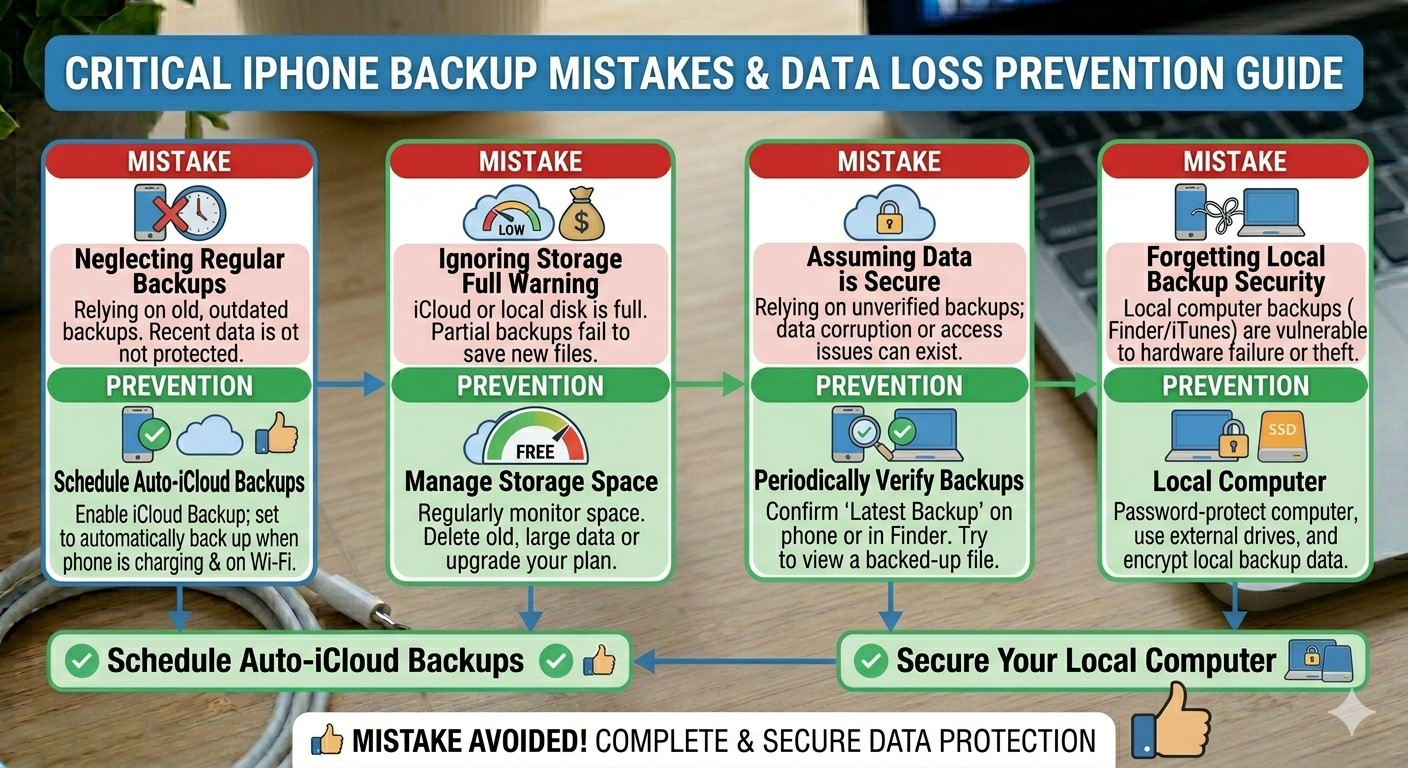
Creating an iPhone backup is relatively simple, but many users unknowingly make mistakes that can lead to incomplete backups or data loss. Understanding these common issues can help ensure your information remains fully protected.
Ignoring iCloud Storage Limits
One of the most common backup problems occurs when users run out of iCloud storage.
Many people assume their backups are being created automatically, only to discover months later that storage limitations have prevented new backups from being completed.
It’s a good habit to regularly check your available storage and upgrade your plan if necessary.
Using an Unstable Wi-Fi Connection
Because iCloud backups rely on internet connectivity, weak or inconsistent Wi-Fi can interrupt the process.
Large backups, especially those containing photos and videos, require a stable connection to upload successfully.
Whenever possible, use a reliable Wi-Fi network when creating or updating backups.
Disabling Automatic Backups
Some users turn off automatic backups to save storage space and then forget to manually create new backups.
This can leave months of new photos, messages, and app data unprotected.
Keeping automatic backups enabled ensures your latest information is regularly saved without requiring extra effort.
Never Checking Backup Status
Creating a backup once does not guarantee future backups will continue working properly.
Storage limitations, account issues, or connectivity problems can prevent backups from completing.
Checking your backup status occasionally helps confirm everything is working as expected.
Waiting Until Something Goes Wrong
Perhaps the biggest mistake is delaying backups until a problem occurs.
A damaged, lost, or stolen device cannot create a backup after the fact.
The safest approach is to maintain regular backups so your data is always protected before an issue arises.
Benefits of Automatic iCloud Backups
Automatic backups offer significant advantages compared to relying solely on manual backups.
Once enabled, your iPhone can continuously protect important information in the background.
Always Up-to-Date Data Protection
Automatic backups ensure that recent photos, contacts, messages, and app information are regularly saved.
This reduces the risk of losing newly created content.
Less Effort Required
Instead of remembering to create backups manually, the process happens automatically whenever the required conditions are met.
This convenience encourages better long-term data protection.
Faster Device Recovery
If you need to restore your iPhone, a recent backup makes the process much easier.
Your settings, apps, and personal information can be recovered quickly, reducing downtime and frustration.
Smoother Device Upgrades
Whether you’re upgrading to a newer model or switching to a refurbished iPhone, automatic backups simplify the setup process.
Your data can be restored directly onto the new device, creating a familiar experience from the moment you sign in.
Greater Peace of Mind
Perhaps the biggest benefit is confidence.
Knowing your important information is regularly protected allows you to use your device without constantly worrying about potential data loss.
FAQs About Backing Up an iPhone
1. How Long Does an iPhone Backup Take?
The time required depends on your internet speed and the amount of data stored on your device. Typically 5 to 30 minutes. If you have a large photo library or many apps, your first backup could take up to an hour. Future backups are faster because only new data is uploaded.
2. Does iCloud Backup Save Photos and Videos?
Yes, iCloud Backup can save your photos and videos. If iCloud Photos is enabled, your media files are stored separately in iCloud and synced across your Apple devices.
3. Can I Use My iPhone While It Is Backing Up?
Yes, you can continue using your iPhone during the backup process. However, heavy usage such as streaming or downloading large files may slow the backup speed.
4. How Often Should I Backup My iPhone?
Back up at least once a week. If you use banking or work apps daily, backing up every day is a smart habit. With iCloud Backup enabled, this can happen automatically.
5. What Happens If I Run Out of iCloud Storage?
If your iCloud storage is full, new backups cannot be completed. You can free up space by deleting unnecessary files or upgrade to a larger storage plan.
6. Can I Restore My Backup to a New iPhone?
Yes, you can restore your iCloud backup when setting up a new iPhone. This allows you to transfer your photos, contacts, messages, apps, and settings quickly.
7. Is iCloud Backup Safe and Secure?
Yes, Apple uses encryption and advanced security measures to help protect data stored in iCloud. Two-factor authentication also adds an extra layer of account security.
8. Can I Backup My iPhone Without Using iCloud?
Yes, you can create a backup using a Mac through Finder or a Windows PC through iTunes. However, iCloud remains the easiest option for most users because it works directly from the phone.
9. Will My Apps Be Included in the Backup?
Most app data and settings can be included in an iPhone backup. Some apps may also store information separately through their own cloud services.
10. Should I Backup My iPhone Before Updating iOS?
Yes, creating a backup before installing an iOS update is strongly recommended. It helps protect your data in case an unexpected issue occurs during the update process.
Conclusion
Learning how to backup iPhone on the phone is one of the easiest yet most effective ways to protect your valuable data. From photos and videos to contacts, messages, and app settings, your iPhone stores information that plays an important role in your daily life.
By enabling iCloud Backup, you can automatically secure your data without needing a computer or third-party software. Whether you’re upgrading to a new device, troubleshooting an issue, or preparing for unexpected situations, having a recent backup ensures your information remains safe and easily recoverable.
Making regular backups a habit is just as important as keeping your iPhone updated and protected.”…spending a few minutes setting up your backup today can save you from data loss and stress. If you’re also planning an upgrade, visit our guide on where to buy cheap iPhones for the best deals on quality devices.”
Protect Your Data and Upgrade with Confidence
Planning to upgrade your current iPhone or looking for a reliable replacement device?
At iExpert Market, we offer a wide selection of professionally tested refurbished iPhones that provide excellent value without compromising quality. Whether you’re moving to a newer model or replacing an older device, having a recent backup makes the transition quick and hassle-free.
And if your current iPhone is experiencing issues that could put your data at risk, iExpert Repairs is here to help. Our experienced technicians can diagnose and repair a wide range of iPhone problems, helping you keep your device running smoothly while protecting your important information.
Don’t wait until valuable data is lost. Backup your iPhone today, and when it’s time to repair, replace, or upgrade your device, trust iExpert Market and iExpert Repairs for dependable solutions you can rely on.
Back to posts