Introduction
Turning off a Samsung phone may seem straightforward, but many users find it confusing because newer Samsung Galaxy smartphones use different Side Key functions than older models. If you’re searching for how to turn off a Samsung phone, it’s important to know that Samsung has updated its power controls across various devices, including the Galaxy S, Galaxy A, Galaxy Z Fold, and Galaxy Z Flip series. As a result, the shutdown process can vary depending on your phone model and software version.
Understanding the correct way to power off a Samsung phone can help improve device performance, resolve temporary software glitches, reduce overheating, and refresh background processes. In this complete guide, you’ll learn multiple methods to turn off your Samsung Galaxy device, including using the Side Key, Quick Settings menu, Bixby voice commands, and alternative troubleshooting solutions when the power menu isn’t working properly. This step-by-step guide is designed to help Samsung users quickly and safely shut down any Galaxy smartphone.
Why Turning Off Your Samsung Phone Is Important
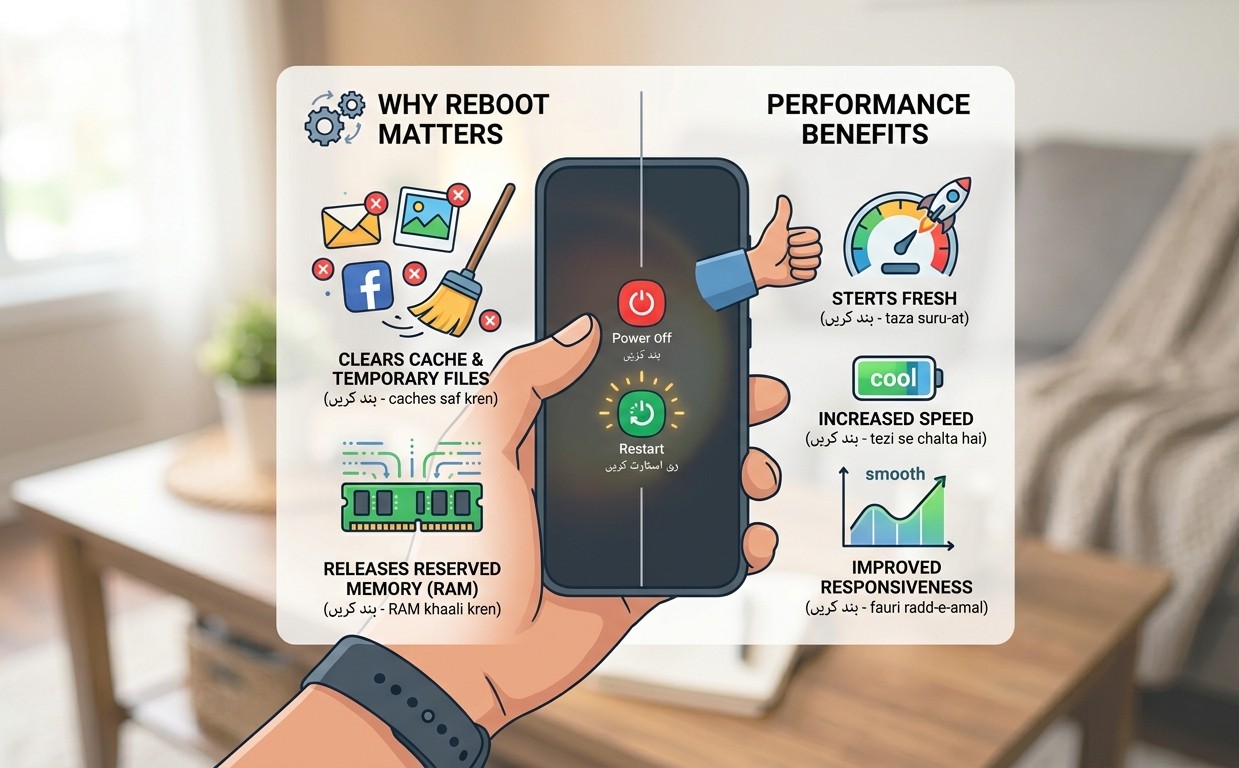
Many smartphone users rarely switch off their devices because modern phones are designed to remain powered on for extended periods. However, shutting down your Samsung phone occasionally can help improve performance and maintain system stability.
When a phone remains active for weeks without restarting, background applications and temporary files can accumulate. A proper shutdown clears these temporary processes and gives the operating system a fresh start.
Benefits of Turning Off Your Samsung Phone
- Clears temporary cache files
- Refreshes system memory
- Improves device responsiveness
- Stops unnecessary background processes
- Helps resolve minor software glitches
- May improve battery performance
Understanding these features makes it easier to customise your device and access power controls more efficiently.
Using Physical Buttons to Power Off Your Device
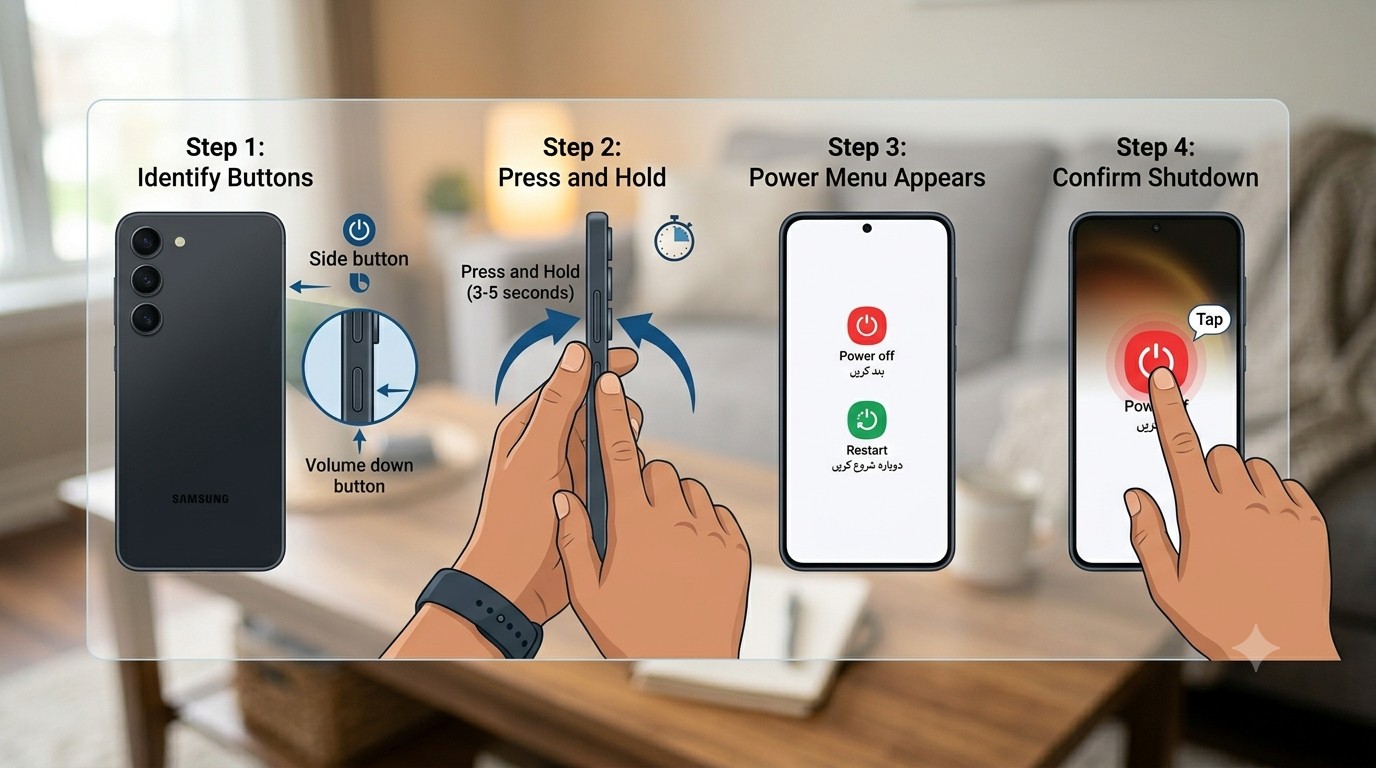
The fastest and most common method for turning off a Samsung phone is by using a button combination. Most modern Galaxy smartphones require you to press and hold the Side Key and Volume Down button simultaneously.
After a few seconds, the power menu will appear on the screen. From there, simply select “Power Off” and confirm your choice. This method works on the majority of Samsung smartphones released in recent years.
Steps to Turn Off Your Samsung Phone
- Locate the Side Key.
- Find the Volume Down button.
- Press and hold both buttons together.
- Wait for the Power Menu to appear.
- Tap Power Off.
- Confirm the shutdown.
This process is quick, reliable, and easy to remember.
Accessing the Power Menu Through Quick Settings
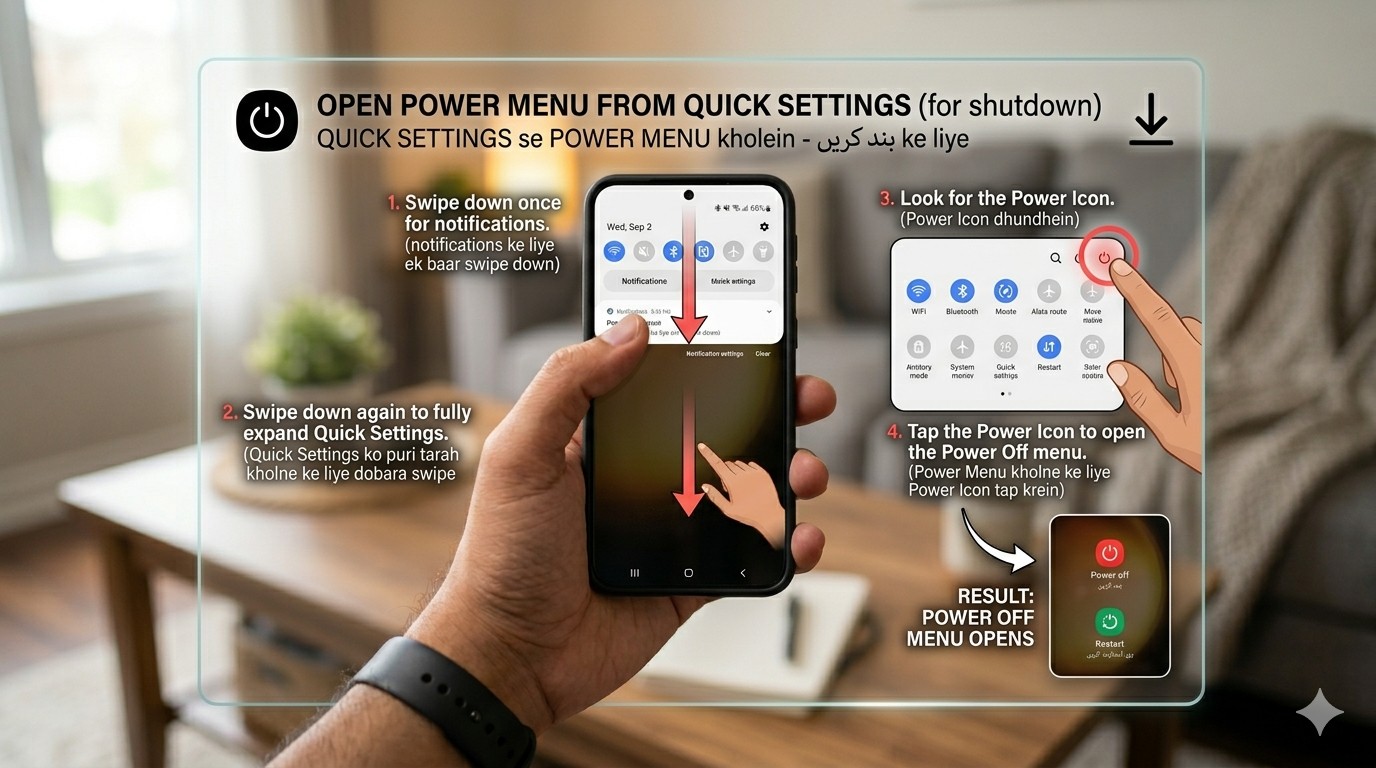
Samsung also offers a software-based method for shutting down your phone. This option is available through the Quick Settings panel and does not require any physical buttons.
To access it, swipe down from the top of the screen to open notifications. Swipe down again to expand the Quick Settings menu. You’ll notice a small power icon near the top of the screen. Tapping this icon immediately opens the shutdown menu.
Advantages of Using Quick Settings
- No button presses required
- Useful when buttons are damaged
- Fast access to shutdown controls
- Easy for beginners to use
- Available on most Samsung devices
This method is particularly helpful for users who prefer touch controls over hardware buttons.
Turning Off Your Samsung Phone with Bixby
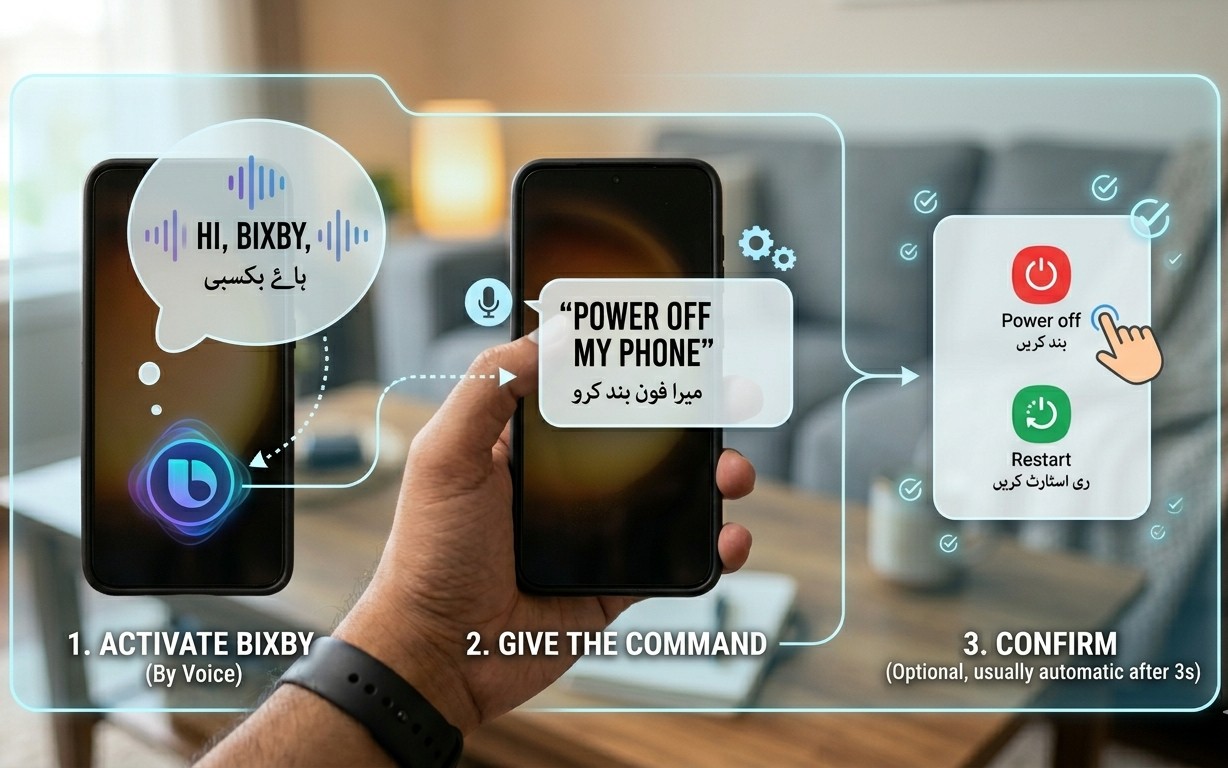
Samsung’s voice assistant, Bixby, can also help manage power functions. If you prefer hands-free controls, you can simply ask Bixby to turn off your phone.
After activating Bixby, say a command such as “Turn off my phone.” Bixby will display the shutdown menu and ask for confirmation before proceeding.
Benefits of Using Bixby
- Hands-free operation
- Accessibility-friendly
- Quick access to power controls
- Convenient while multitasking
- Works on supported Galaxy devices
Voice commands are becoming increasingly popular because they allow users to perform tasks without touching their phones.
Shutting Down Through Device Settings
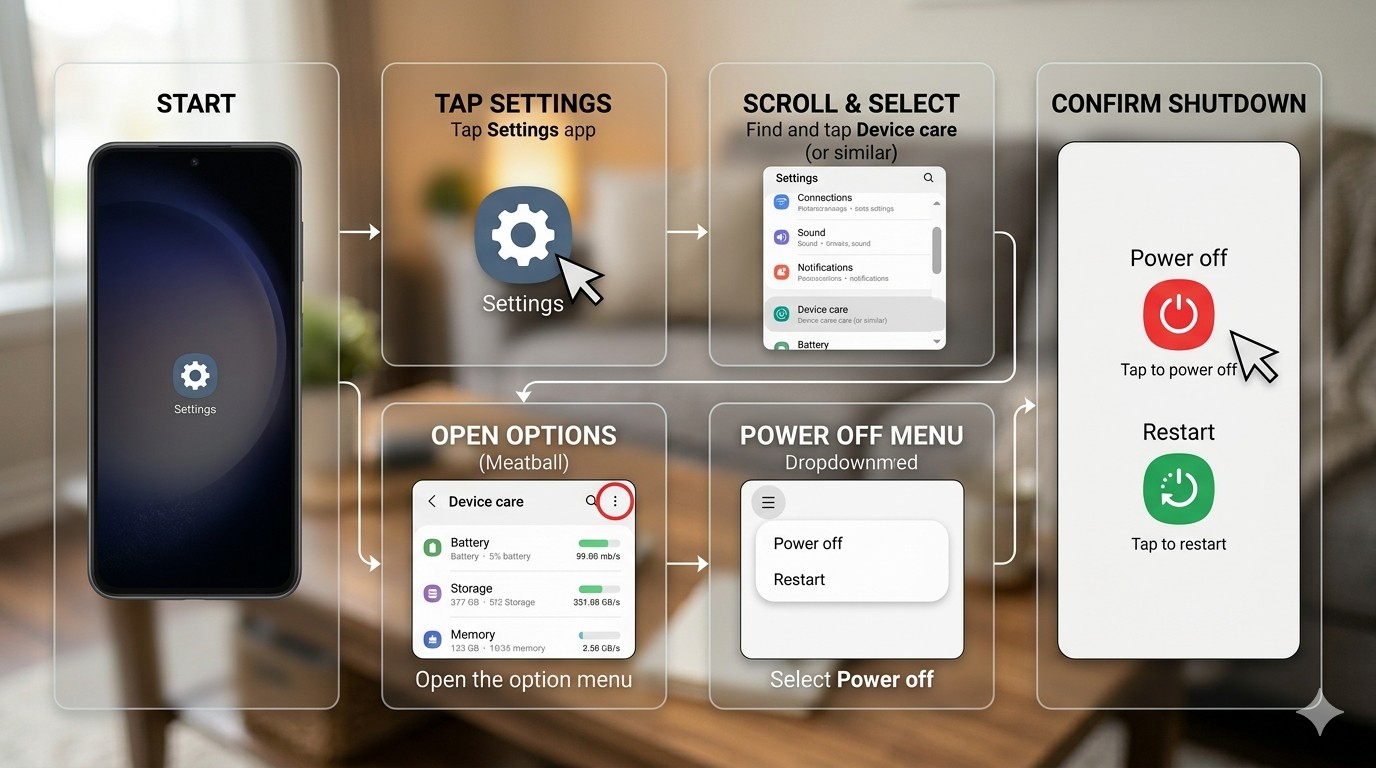
Some Samsung devices provide power management options through the Settings application. Although this method may vary depending on your software version, it remains a useful alternative when physical buttons are unavailable.
Navigate through Settings and look for sections such as Device Care, Advanced Features, or Device Management. Depending on your device, shutdown options may be available within these menus.
Why Use Settings?
- Helpful when buttons are damaged
- Provides additional device controls
- Easy to access through software
- No hardware interaction required
- Suitable for troubleshooting situations
For users experiencing button-related issues, this can be one of the most convenient methods available.
How to Force Restart an Unresponsive Samsung Phone?
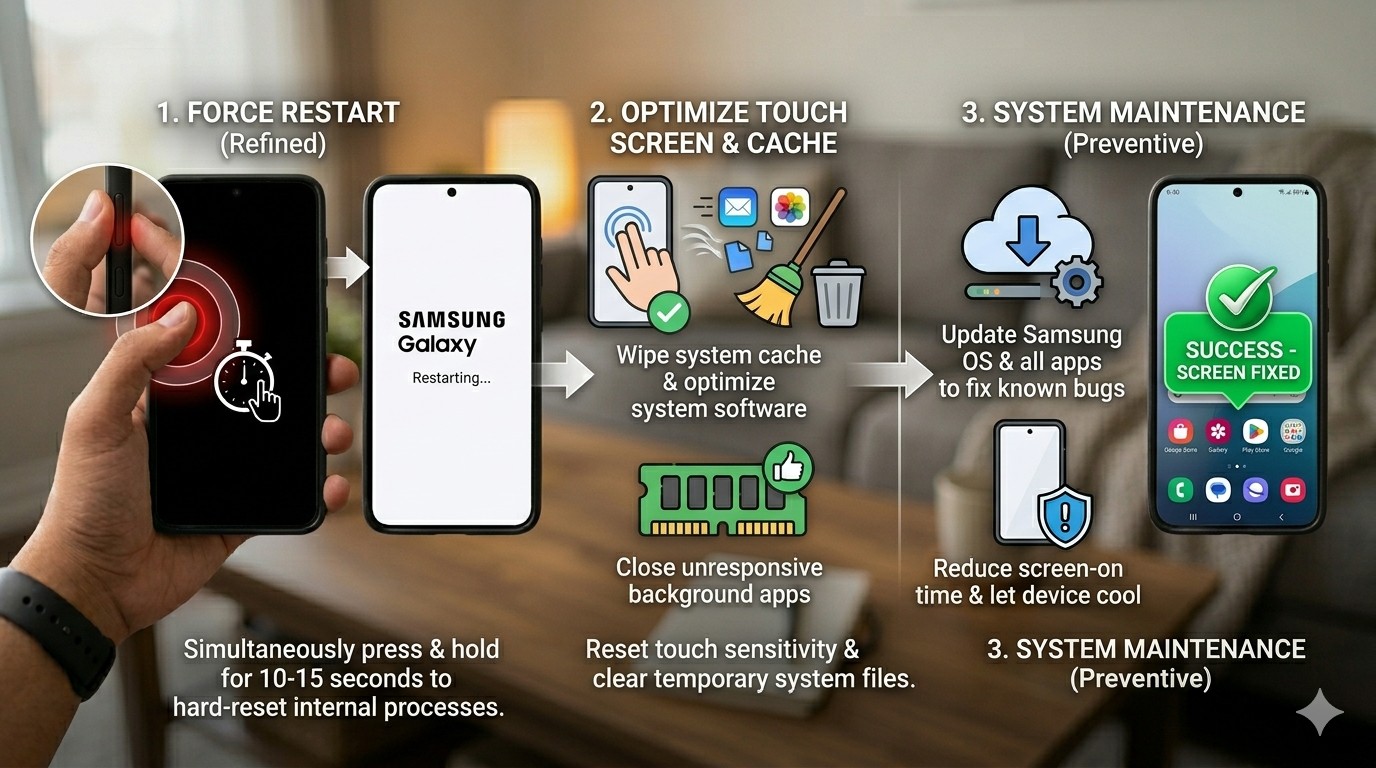
Occasionally, a Samsung smartphone may freeze due to app crashes, software conflicts, or temporary system errors. When this happens, normal shutdown methods may not respond.
A force restart is designed specifically for these situations. Press and hold the Side Key and Volume Down button together for approximately ten to fifteen seconds. The Samsung logo should appear, indicating that the phone is restarting.
Common Reasons for a Frozen Device
- App crashes
- Insufficient memory
- Software bugs
- Overheating issues
- System conflicts
Force Restart Steps
- Hold the Volume Down button.
- Hold the Side Key.
- Keep holding both buttons.
- Wait for the Samsung logo.
- Release the buttons.
This process is safe and usually resolves temporary software issues without affecting personal data.
What to Do If the Screen Stops Responding?
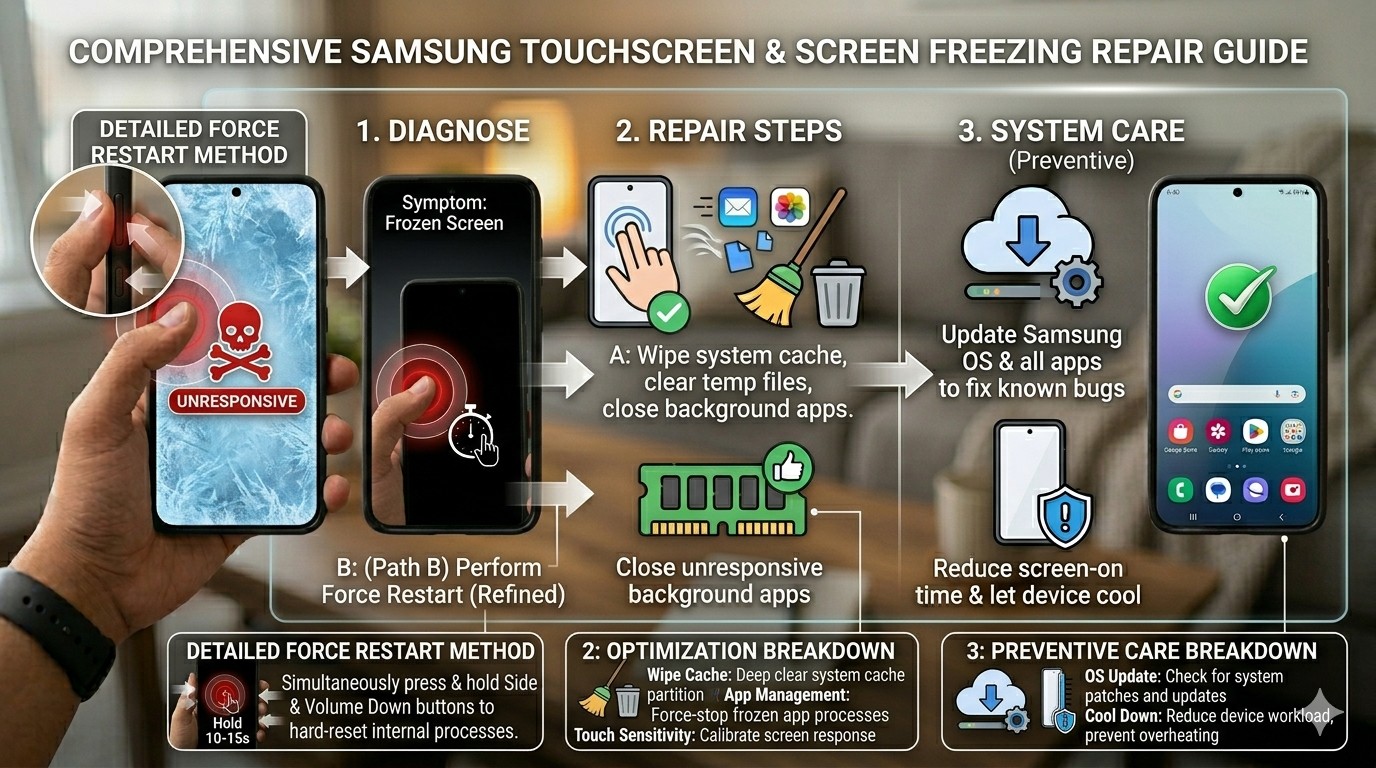
A frozen screen can make your Samsung phone appear unusable, but there are several troubleshooting steps you can try before seeking professional assistance.
Start by performing a force restart. If the issue continues, check for software updates, remove recently installed applications, and free up storage space. Persistent freezing may indicate a deeper software or hardware problem.
Troubleshooting Checklist
- Perform a force restart
- Install software updates
- Remove problematic apps
- Clear cached files
- Free up storage space
- Check battery health
Following these steps can often restore normal functionality without requiring repairs.
Powering Off Samsung Galaxy S Series Phones
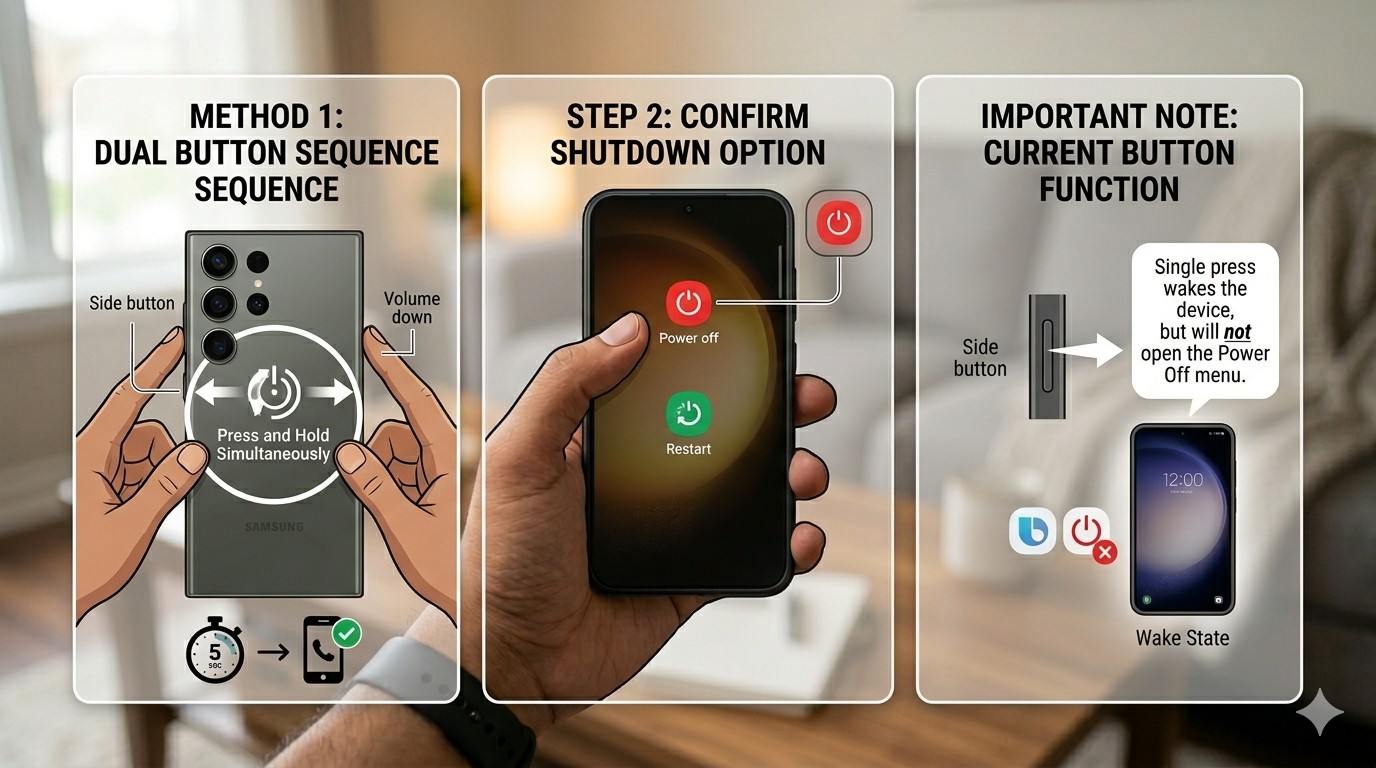
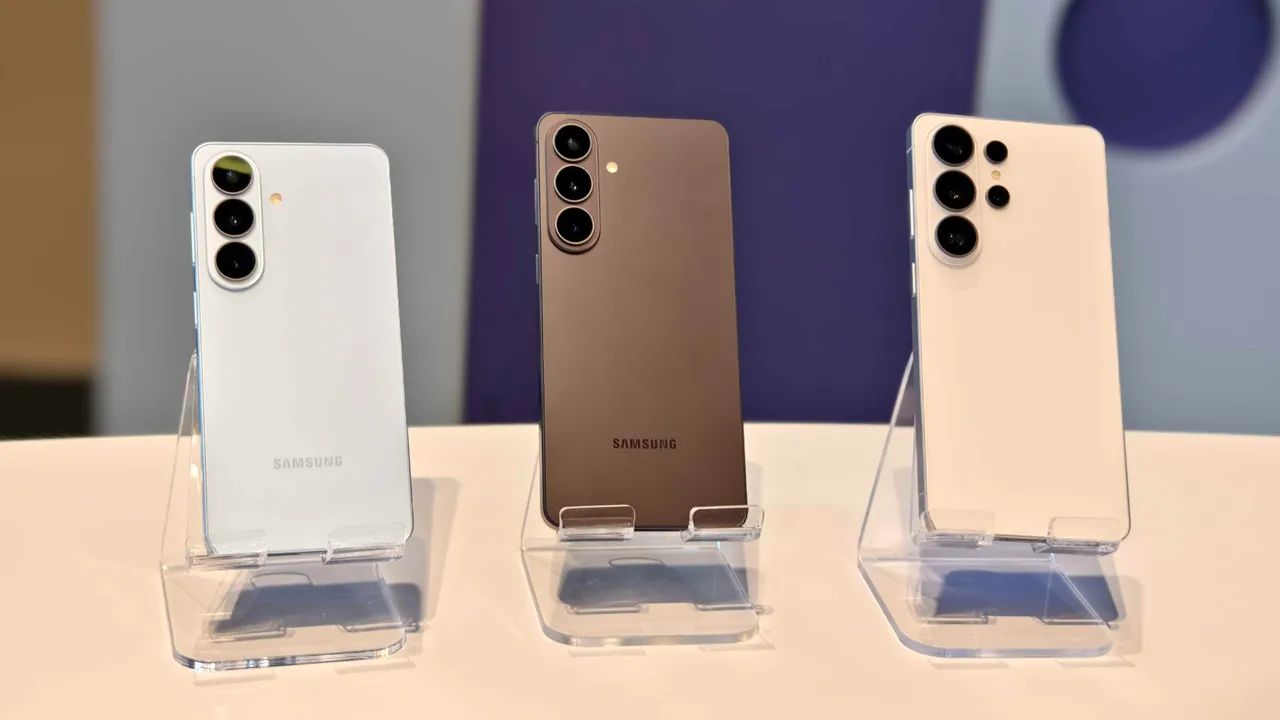
Samsung Galaxy S Series flagship devices (such as the S21, S22, S23, S24, S25, A55, A35, Z Fold 6,Z Fold 7, Z Flip 6, Z Flip 7 and upcoming models) all follow a similar shutdown process. Samsung has designed these devices to provide multiple ways for users to access power controls easily.
In most of these phones, the Side Key + Volume Down button combination is the most common method for powering off the device. In addition to this, users can also use Quick Settings or voice assistant options for more convenient access.
Supported Models
- Galaxy S21 Series
- Galaxy S22 Series
- Galaxy S23 Series
- Galaxy S24 Series
- Galaxy S25 Series
- Galaxy S Ultra Models
Key Points
- Same shutdown method across most flagship devices
- Quick Settings provides alternative access
- Side Key customisation is available
- Bixby integration supported
Switching Off Galaxy A Series Devices
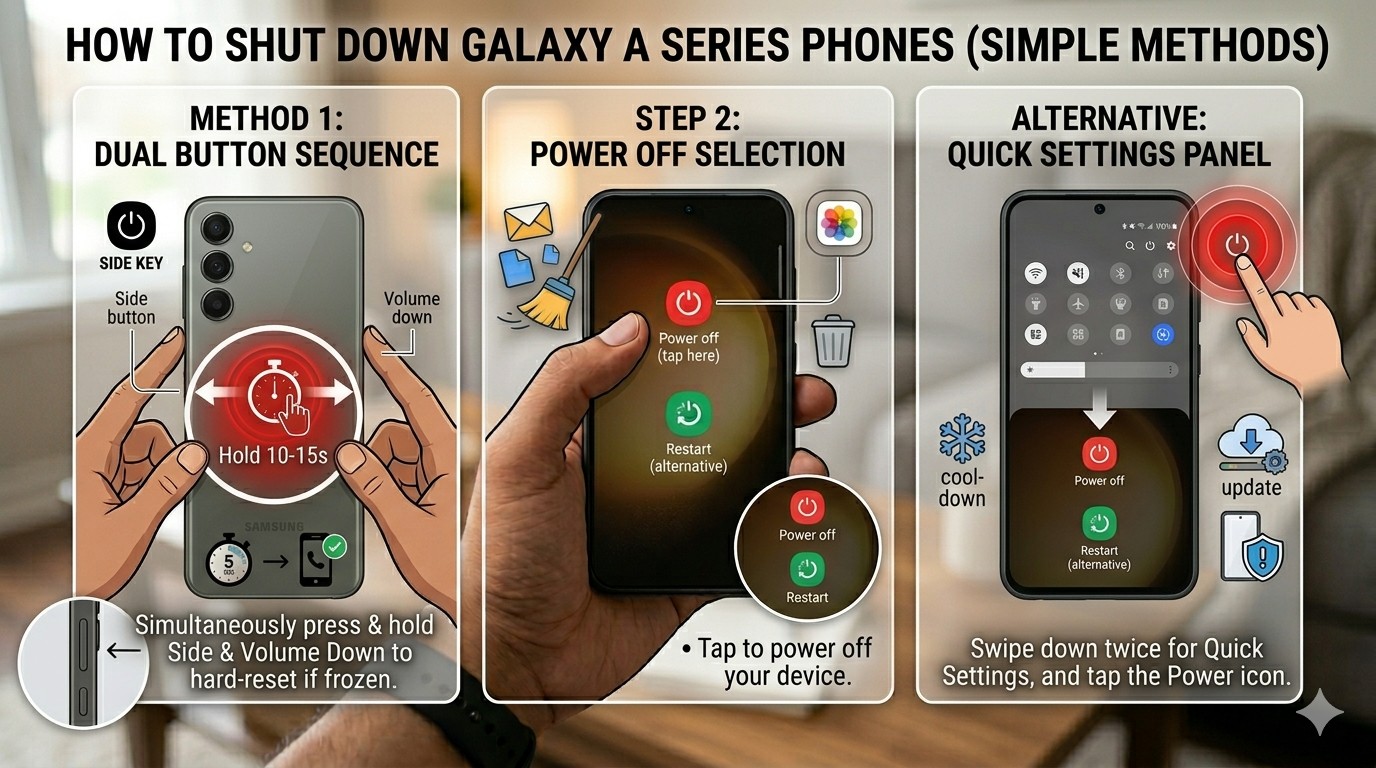
The Samsung Galaxy A Series is Samsung’s budget and mid-range smartphone lineup, widely popular around the world. These devices also use modern shutdown methods, although some older models may still include traditional power button behavior.
The A Series is known for its simple and user-friendly interface, making the shutdown process easy even for beginners.
Popular Models
- Galaxy A14 / A15
- Galaxy A24 / A25
- Galaxy A34 / A35
- Galaxy A54 / A55
- Galaxy A Series 5G variants
Turning Off Samsung Foldable Smartphones
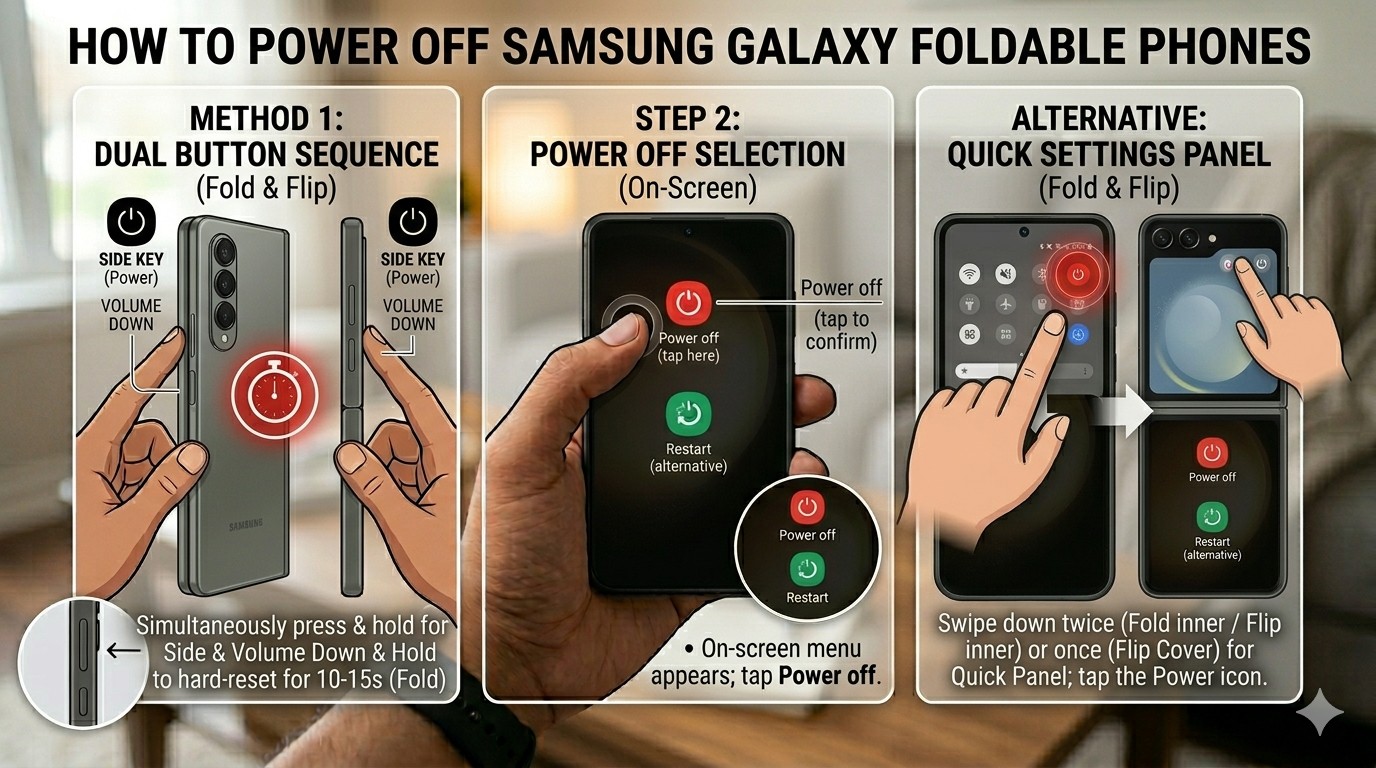
Samsung foldable devices like the Galaxy Z Fold and Galaxy Z Flip come with advanced technology, but their shutdown process is similar to standard Galaxy smartphones.
The Side Key is the main control method, while Quick Settings and Bixby act as backup options.
Supported Foldable Devices
- Galaxy Z Fold 4 / Galaxy Fold 5 / Galaxy Fold 6 / Galaxy Fold 7
- Galaxy Z Flip 4 / Galaxy Flip 5 / Galaxy Flip 6 / Galaxy Flip 7
- Future Fold series models
Customising the Side Key for Easier Access
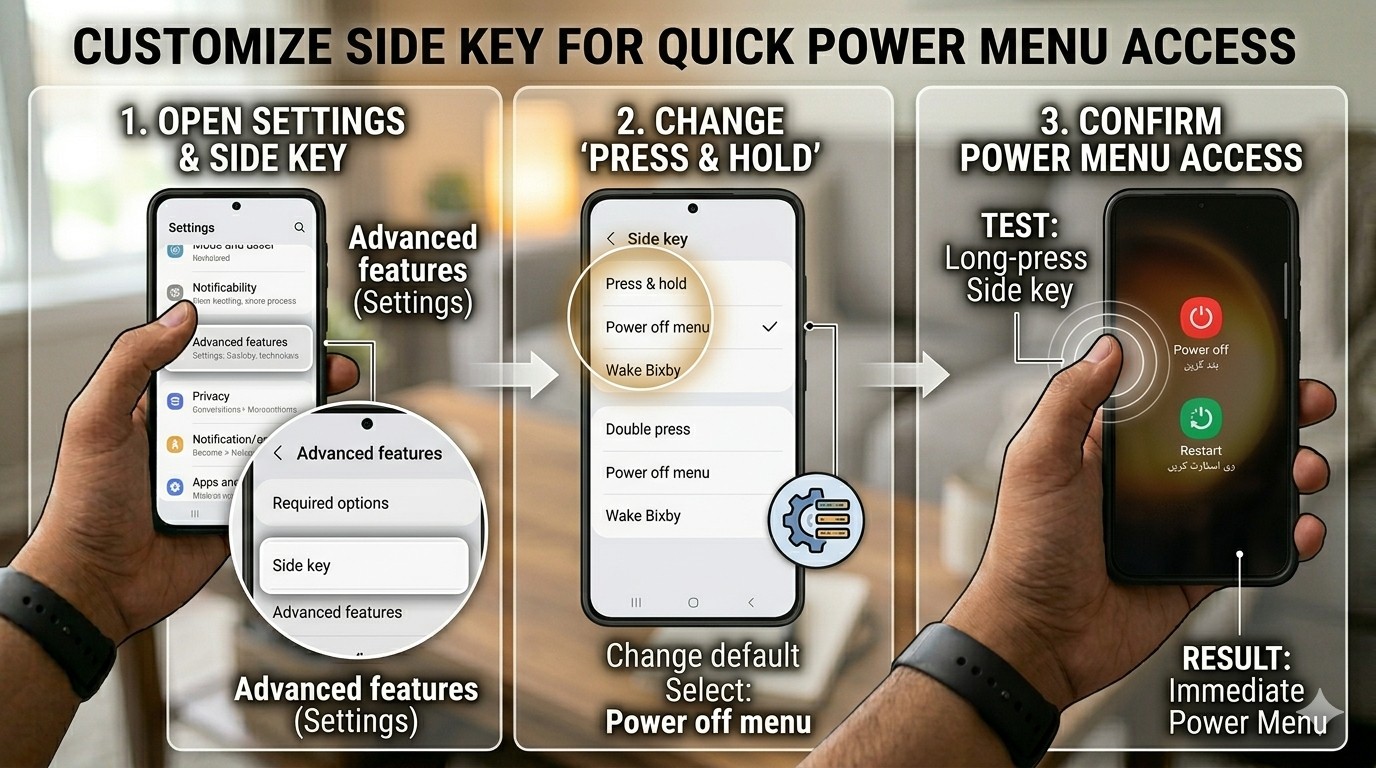
Samsung allows users to customize the Side Key, enabling them to change its behavior based on personal preference. By default, the Side Key activates Bixby, but it can be changed to open the Power Menu instead.
This feature is especially useful for users who frequently power off or restart their devices.
Customisation Options
- Open Power Menu directly
- Launch Bixby Assistant
- Open Camera quickly
- Run custom shortcuts
- Emergency actions
Common Shutdown Problems and Their Solutions
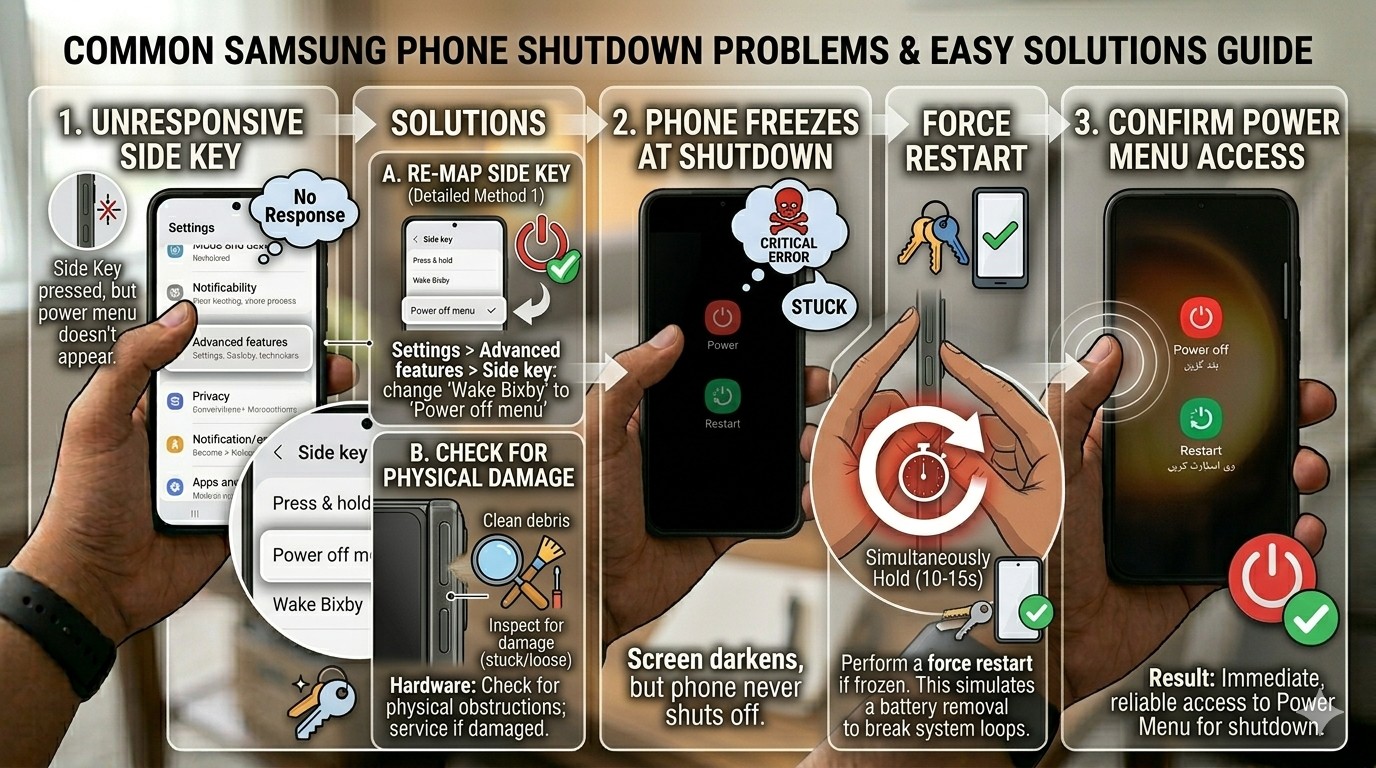
Sometimes users face issues while trying to power off Samsung devices. These problems are usually caused by software settings or button configuration.
Fortunately, most of these issues can be easily fixed.
Common Issues
- Power menu does not appear
- Bixby opens instead of power options
- Phone freezes
- Device restarts instead of shutting down
- Buttons not responding
When Restarting Is Better Than Powering Off
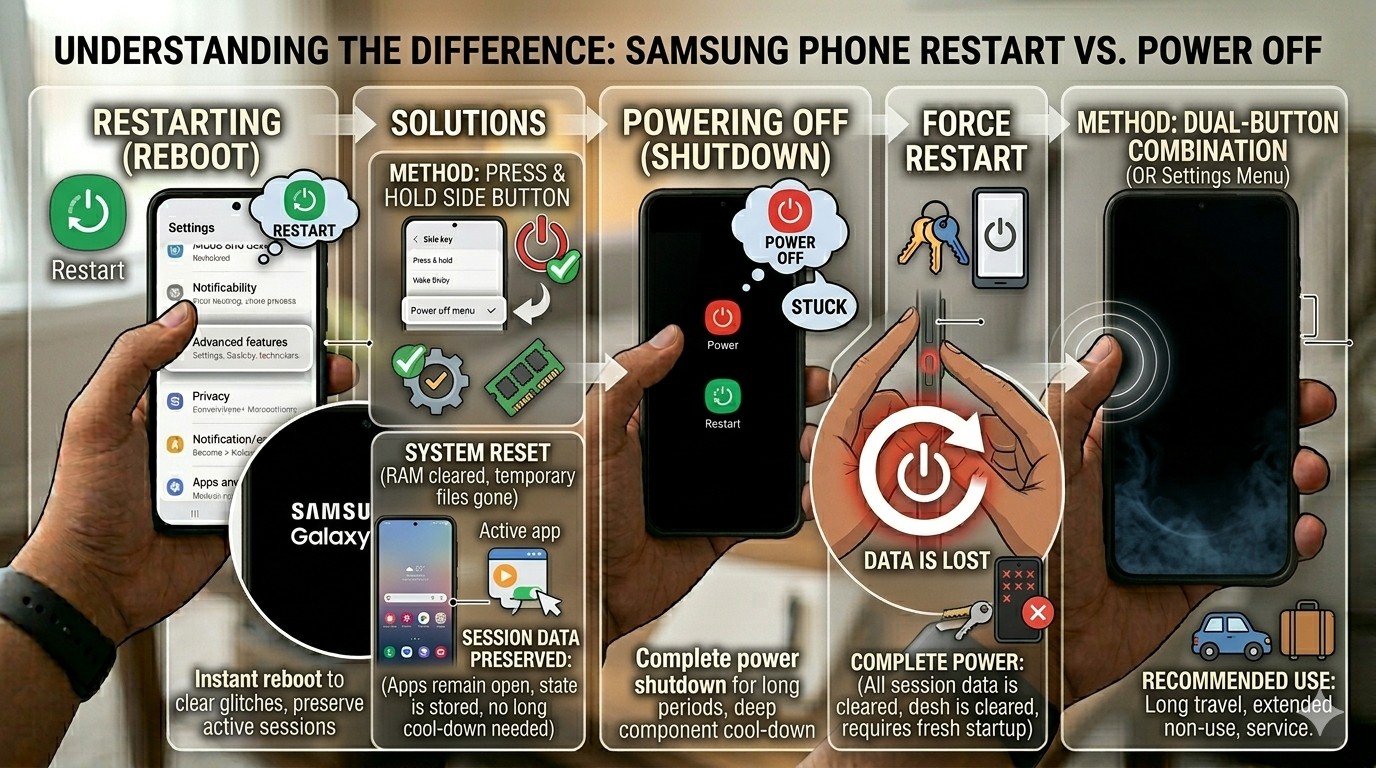
In many cases, completely turning off your phone is not necessary. A simple restart is often more effective as it refreshes the system without fully shutting it down.
Restarting can fix temporary glitches and improve overall performance.
Best Situations for Restart
- Slow performance
- App crashes
- Network issues
- Bluetooth or Wi-Fi problems
- System lag
Important Things to Remember Before Shutting Down
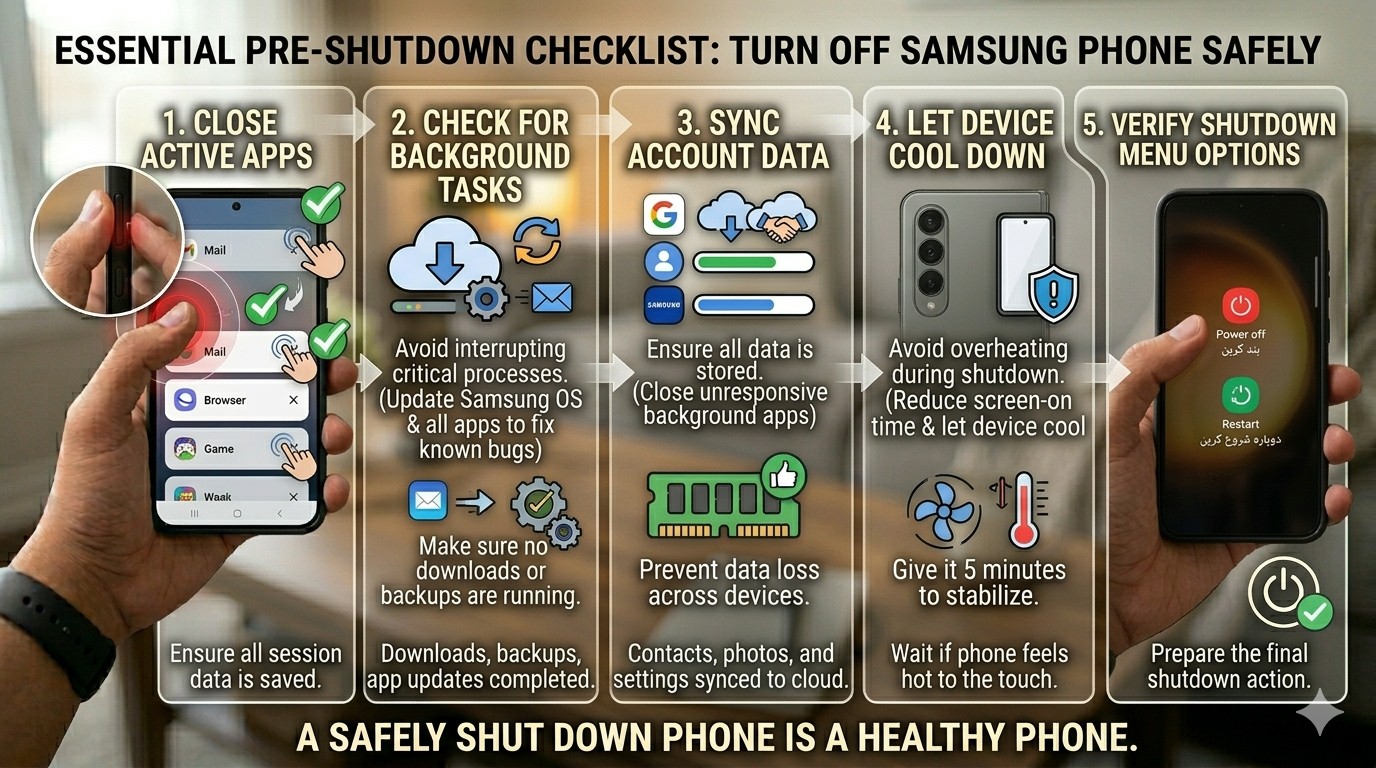
Before powering off a Samsung device, it is important to follow a few precautions to avoid data loss or system issues.
These small steps help keep your device safe and stable.
Safety Checklist
- Save your work
- Close background apps
- Complete file transfers
- Avoid interrupting software updates
- Check battery level
Advanced Tips for Managing Power Options on Samsung Devices
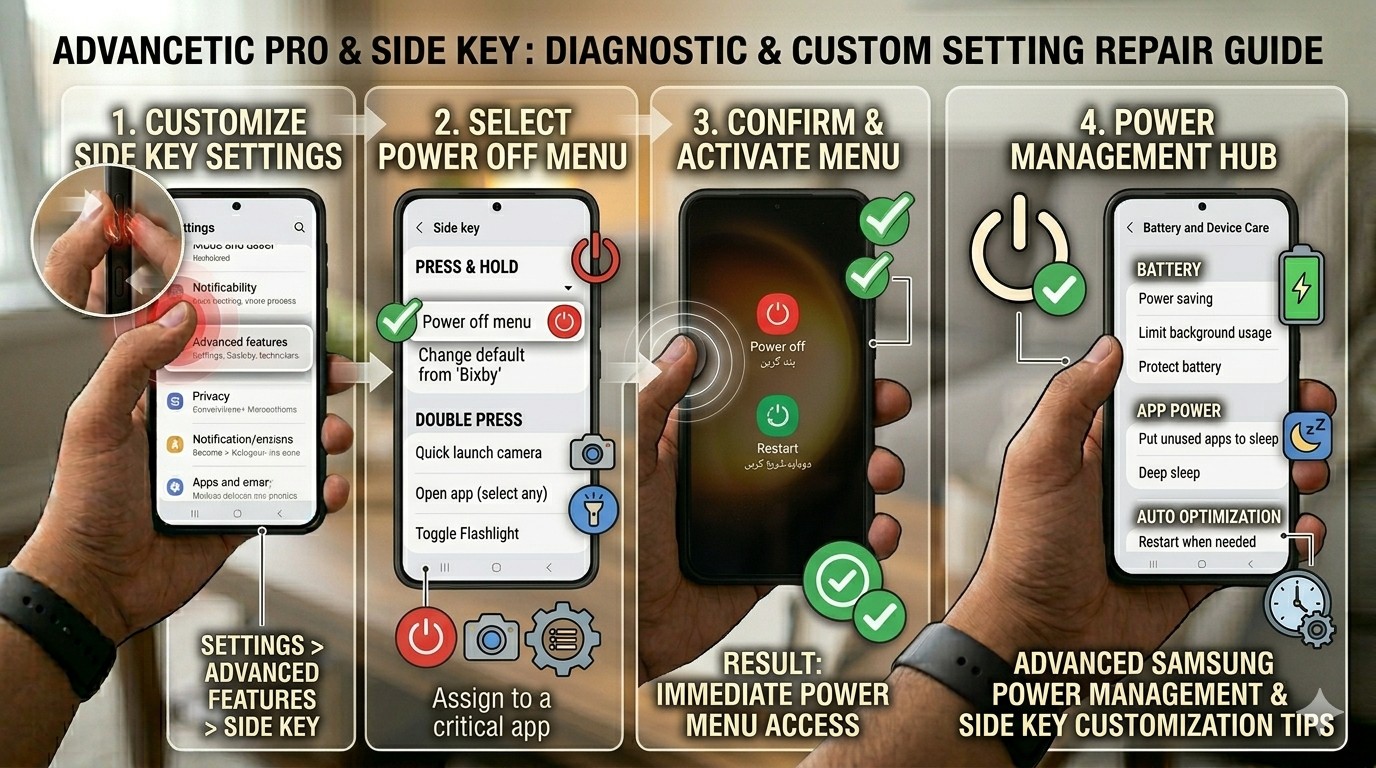
Samsung smartphones include several useful power management features that make it easier to control your device. Whether you want to quickly turn off your phone, restart it, or customise button functions, Samsung provides flexible settings to improve the user experience. These options are especially helpful for users who want faster access to power controls without navigating through multiple menus.
One of the most valuable features is the ability to customise the Side Key function through Samsung’s settings. You can choose how the Side Key behaves when pressed and held, making it easier to access the power menu whenever needed. Combined with Samsung’s One UI optimisation tools, these settings help ensure smooth performance, reliable shutdown and restart functions, and a more convenient overall smartphone experience.
Battery Optimisation and Power Management
A healthy battery is essential for keeping your Samsung phone running smoothly. If your battery is aging or experiencing issues, you may notice problems such as unexpected restarts, delayed shutdowns, freezing, or slower overall performance. Maintaining good battery health helps ensure that your device powers off and restarts properly whenever needed.
Samsung includes built-in battery management features that allow users to monitor battery usage, identify power-hungry apps, and optimise device performance. Regularly checking your battery status and using Samsung’s optimisation tools can improve battery life, enhance system stability, and provide a more reliable smartphone experience over time.
Battery Management Tips
- Enable Adaptive Battery mode
- Reduce background app activity
- Avoid extreme charging habits (0% or 100% frequently)
- Use Power Saving Mode when needed
- Monitor battery usage in Settings
Frequently Asked Questions About Samsung Phone Shutdown (FAQs)
1. How can I properly power off a Samsung Galaxy S Series phone?
To power off your Samsung Galaxy S Series device, press the Side Key and Volume Down button together. After 1-2 seconds, the power menu will appear – simply tap “Power Off.” This works across all modern Galaxy models because Samsung now uses the Side Key system instead of a traditional power button.
2. Why does Bixby open instead of the power menu when I press the Side Key?
This is a very common issue in Samsung devices because the Side Key is often set to launch Bixby by default. When this setting is active, pressing and holding the button will open the voice assistant instead of showing power options. You can easily fix this by going into Settings > Advanced Features > Side Key, and then changing the “Press and hold” option from Bixby to “Power Off Menu.” This adjustment restores normal shutdown behavior.
3. What should I do if my Samsung phone becomes unresponsive and won’t shut down?
If your phone is frozen and does not respond to normal shutdown methods, you should perform a force restart. To do this, press and hold both the Side Key and Volume Down button for about 10 to 15 seconds until the screen turns off and the Samsung logo appears. This method does not delete any data and is used to recover the device from temporary system freezes.
4. Can I schedule my Samsung phone to turn off automatically?
Yes, many Samsung smartphones include a built-in feature called Scheduled Power On/Off, although it may not be available on all models or newer One UI versions. If supported, you can find it under Settings > Battery and Device Care > Automation or Advanced Settings. This feature allows users to set a specific time for the phone to automatically turn off and turn back on, which is useful for saving battery or refreshing system performance.
5. Is restarting my phone better than completely powering it off?
In many situations, restarting is more effective than fully powering off the device. A restart refreshes the system memory, closes background processes, and fixes minor software glitches without requiring manual startup. It is especially useful when your phone is running slow, apps are crashing, or connectivity issues occur. However, a full shutdown is better when you want to completely stop all system activity or conserve battery.
6. Why is the power menu not showing when I press the Side Key?
If the power menu does not appear, it is usually due to incorrect Side Key configuration or a temporary software issue. In most cases, the Side Key is set to open Bixby instead of the power menu. You can fix this by adjusting the Side Key settings in the system menu. If the issue continues, restarting the phone or updating the software usually resolves the problem.
7. Does turning off my Samsung phone help save battery life?
Yes, completely powering off your device helps preserve battery life because it stops all background processes, apps, and system activities. Unlike standby mode, a powered-off device consumes almost no battery power. This is especially useful when you are not planning to use your phone for a long period of time.
8. What is the safest method to shut down a Samsung phone?
The safest and recommended method is always using the official power menu, either through the Side Key or Quick Settings panel. This ensures that all system processes close properly before shutdown, reducing the risk of data corruption or system errors. Force shutdown should only be used when the device is completely frozen.
9. Can software updates change how the side key works?
Yes, Samsung often updates One UI features, and these updates can change how the Side Key behaves or how the power menu appears. Sometimes updates introduce new customisation options or modify default settings. It is always recommended to keep your device updated to ensure smooth performance and access to the latest features.
10. What should I check before turning off my Samsung phone?
Before shutting down your device, it is important to save any ongoing work, close all important apps, and ensure no file transfers or updates are running. Interrupting these processes can lead to data loss or system errors. Also, checking your battery level is recommended, especially if you plan to turn the phone back on soon.
Final Thoughts
Understanding how to properly power off Samsung Galaxy devices is essential for maintaining smooth performance and avoiding system issues. Samsung offers multiple shutdown methods across its S Series, A Series, and Samsung Foldable Devices, making the process flexible and user-friendly.
By customising the Side key, keeping your system updated, and managing battery settings properly, users can ensure a more stable and efficient smartphone experience. Most shutdown-related problems are minor and can be fixed easily through simple settings adjustments or restarts.
Overall, Samsung provides a well-optimised power management system that balances convenience with advanced functionality for all types of users.
Conclusion
In summary, powering off Samsung smartphones is not just a basic function – it is part of a smart system designed for flexibility and control. Whether you are using flagship S Series devices, budget A Series phones, or advanced foldables, Samsung ensures that users have multiple ways to manage power efficiently.
Proper understanding of these features helps prevent common issues like freezing, unresponsive buttons, or accidental Bixby activation. With the right settings, users can enjoy a smooth, reliable, and hassle-free experience.
If you are facing any issues with your Samsung phone – whether it is power button failure, software glitches, or shutdown problems – don’t waste time trying random fixes.
Visit iExpert Repairs for fast, reliable, and professional smartphone repair services.
Our experts can diagnose and fix all Samsung device issues with high-quality solutions and quick turnaround time.
iExpert Repairs – Bringing your device back to life with expert care.
Back to posts